Back to the Future: Retroactively activating the macOS User Channel post-enrolment
For many organisations, their current macOS provisioning process doesn't make the user MDM-enabled. Here's an example of how you can activate that for your already enrolled devices.
What’s an MDM-Enabled user?
When applying configurations across Apple OS platforms, Apple gives us details on the Configuration Availability for which platforms a control is applicable to.
Taking the Safari Extension declarative settings as an example:
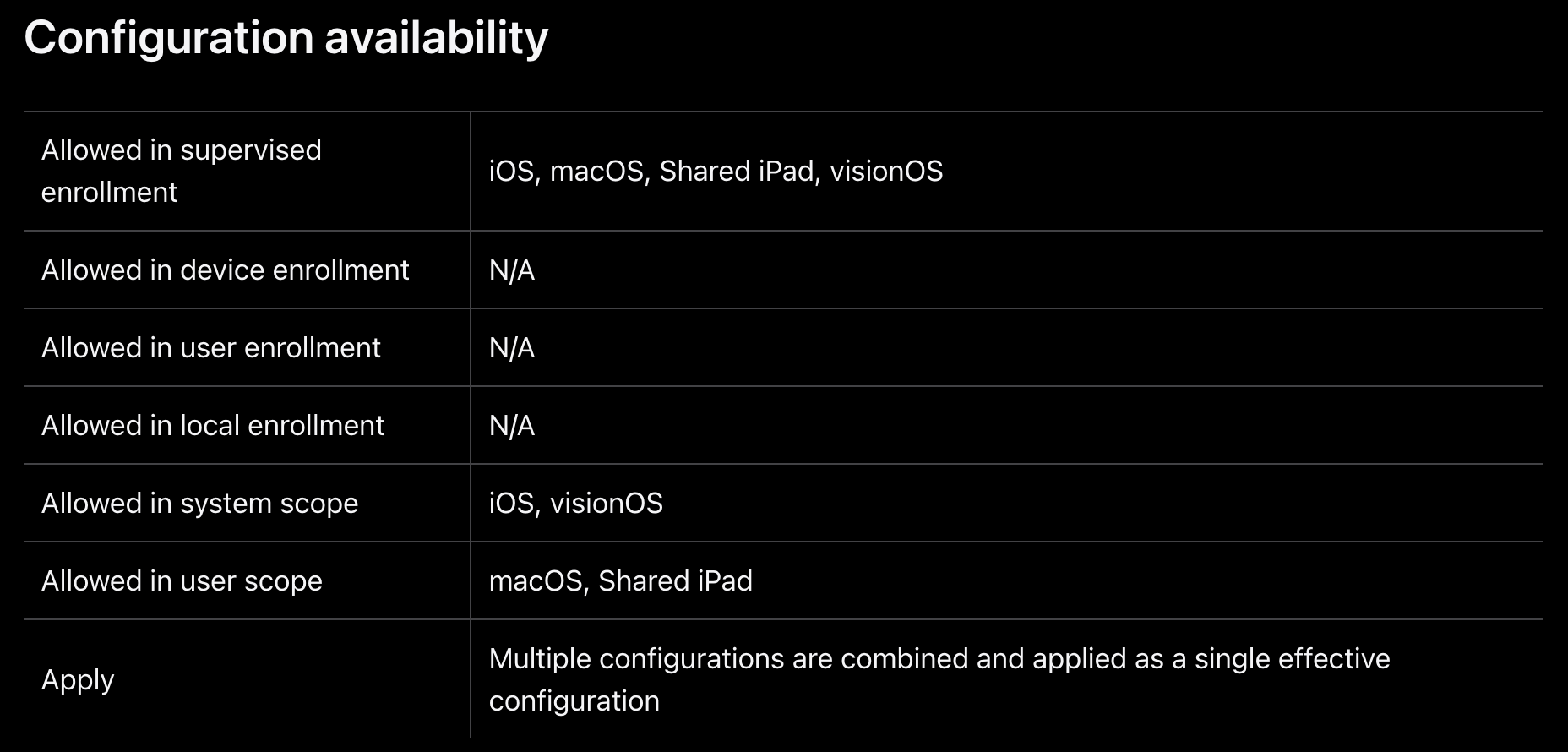
We can see that this declaration is applicable to the system scope on iOS and visionOS, but only the user scope on macOS and Shared iPad.
As this control is applicable to macOS only on the user scope, it can only be applied if there is an MDM-Enabled user on the macOS device.
iOS doesn’t really have the concept of “user accounts”, so it doesn’t have a user scope.
iPadOS does, but only if it’s set up to be Shared iPad, which requires specific configuration to enable.
If there is no MDM-Enabled user on the Mac, the user channel is not active, so no user configurations can be applied.
How does a user become MDM-Enabled?
If you’re provisioning your devices using Automated Device Enrolment (ADE) into a Device Management Service (DMS), your users may already be MDM-Enabled.
If you’re not sure, Rich Trouton has a great Derflounder post on how to identify MDM-Enabled users on macOS Tahoe which you could use on a fresh enrolment in your Org to check.
Jamf have some great documentation about different enrolment methods for ensuring users are created as MDM-Enabled.
However, if you - like me - are skipping user creation in Setup Assistant, and handing JIT account creation over to a tool like Jamf Connect, your macOS users are most likely not MDM-Enabled.
And this presents a big headache.
The problem
Before we carry on, I wanted to explain my thinking.
I think there are two problems that need to be solved here.
- Firstly, we need to make sure that any new enrolments are MDM-Enabled.
- That’s not the focus of this post, but really it should be the first thing we do. We don’t want to be adding water to the bucket while trying to empty it.
- Secondly, once we have that nailed, we need to retrofit this to our existing devices.
- That’s what this post is focusing on.
Creating a new PreStage will give an opportunity to address point 1 above, and enable point 2.
After this has been done, it’s possible that this new PreStage may also become your default moving forward, so ensuring that devices enrolled using this new PreStage result in your users becoming MDM-Enabled from the get-go is important.
Ah crap. My users aren’t MDM-Enabled…What do I do?
At the time of writing, Apple haven’t formally given admins a way to retroactively enable the user channel on macOS devices and make existing users MDM-Enabled.
It is possible to do it with the profiles renew -type enrollment command, however that comes with its own constraints:
- If a device is already enrolled in a DMS, running this command will renew enrolment, but will require admin credentials to authenticate the re-enrolment in System Settings.
- If a device is not enrolled in a DMS, this command does not require admin credentials.
- This did require admin credentials prior to macOS Sequoia. Source
With those constraints taken into consideration, it sounds like we have three options:
- Modify our enrolment process, then wipe and re-enrol all our devices.
- Run
profiles renew -type enrollmenton all existing devices providing admin credentials to standard users, or elevating their permissions to do so. - Remove the MDM profile from existing devices and instruct users to run the re-enrolment themselves.
None of these options sound great.
They either require a lot of work for admins, are a high-risk approach involving elevating users to admin, or temporarily losing management of devices and hoping users can/will run the re-enrolment themselves.
sad-macadmin.png.
However, there is a 4th option, which:
- Does not require wiping and re-enrolling
- Does not require modifying users permissions on their devices
- Does not leave devices in an unmanaged state for any period of time.
I have two words for you: MDM Migration.
When Apple released their AppleOS 26 releases, they also released a feature brand-new in the product-formerly-known-as-Apple-Business-Manager (Apple Business) that allows admins to enforce devices migrate from one DMS, to another, without needing to wipe their devices.
If you aren’t aware of this feature, here are the relevant pages from the Deployment Guide on the topic.
The astute amongst you may well have spotted that this blog is heavily tilted towards how to do things in Jamf. There’s good reason for this - it’s the only DMS I have access to.
From here on, this post will be no exception, however I do hope that for admins reading this who use a different flavour of DMS, it’s given you some inspiration to investigate how you could do this in the tooling you use.
I’d be really interested to hear if you’re able to leverage this approach in your environments.
Sounds like a lot of work…
Honestly, it’s not!
I have quite a simple Jamf environment, and I also don’t do any scoping based on PreStage assignment.
However I think this might be relatively straightforward for even the most complex environment.
To use the MDM Migration feature in Apple Business, we need to have a different DMS to assign the device to. So, first step is to create that and link the ADE token into Jamf Pro.
- I won’t cover that here, it’s pretty bread and butter, and if you’re already using ADE you’ll have done it already. Nevertheless, here’s the docco from Jamf
Once you’ve done that, I found the easiest step to take next is to clone your existing PreStage. This keeps all of the existing configuration the same, but you will need to update the ADE Instance the PreStage is linked to, and tick the “Automatically assign new devices” box.
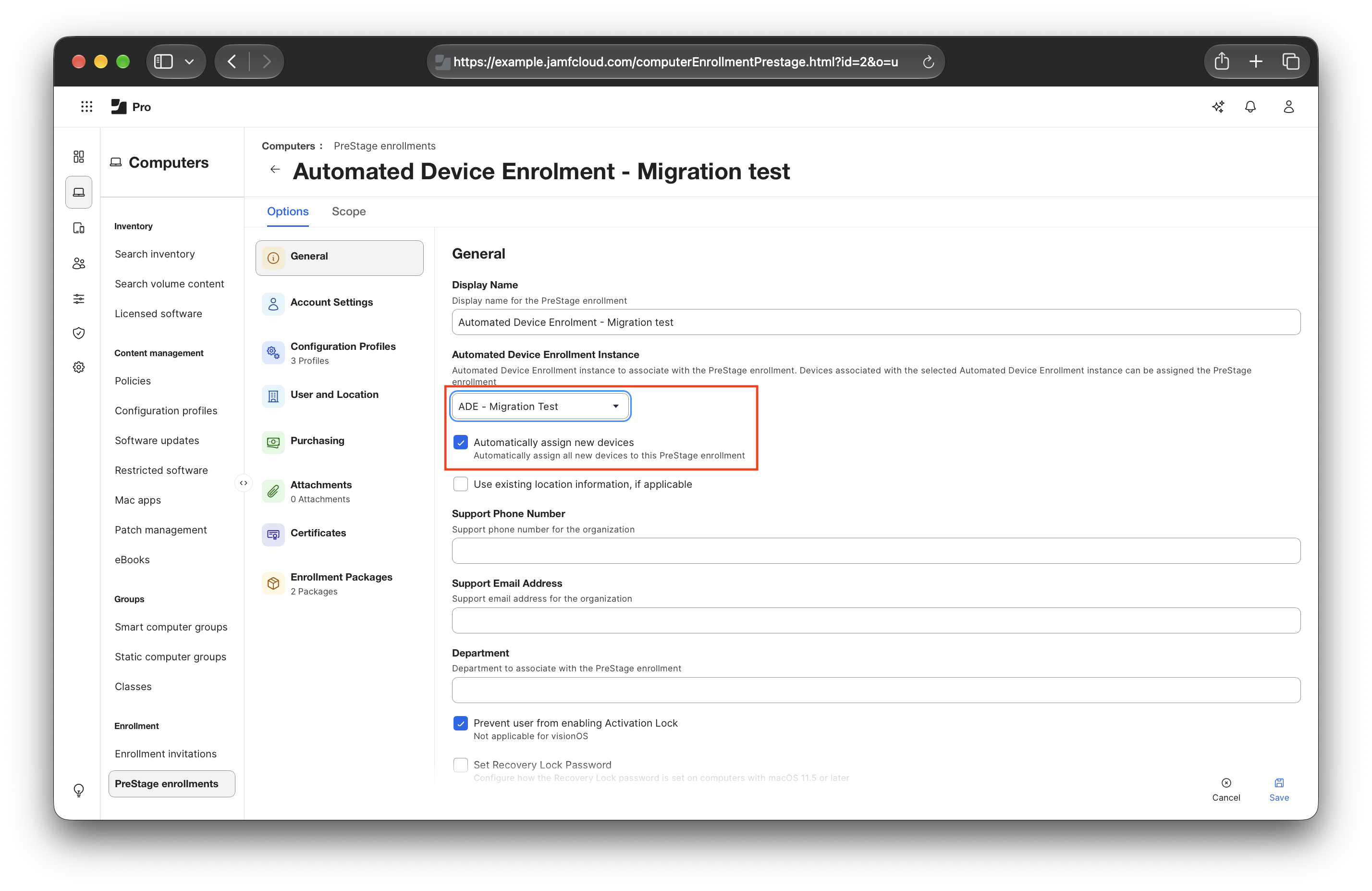
Once we’ve got that done, we can modify the device assignment in Apple Business, set a deadline, and await the notification on the device to begin the process. If you don’t see the option to set a deadline, then you’ll need to ensure your device(s) meet the requirements.
What does it look like on the device?
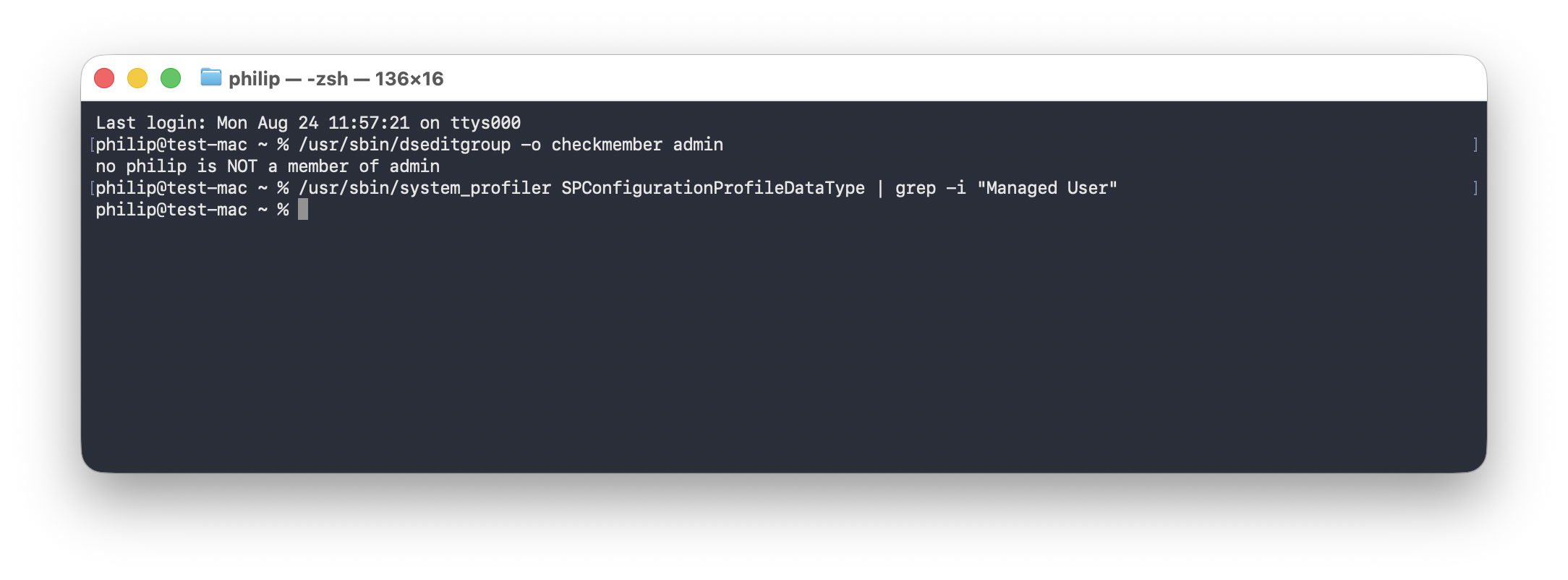
Before we complete the migration, I took a screenshot to prove two things:
- The current logged in user is not an admin on the device.
- We need this to work with standard users and admin users, and this proves it works for standard users.
- There is no MDM-Enabled user on the device already.
- Running the command from Rich’s post I linked earlier shows no results.
- Running the command from Rich’s post I linked earlier shows no results.
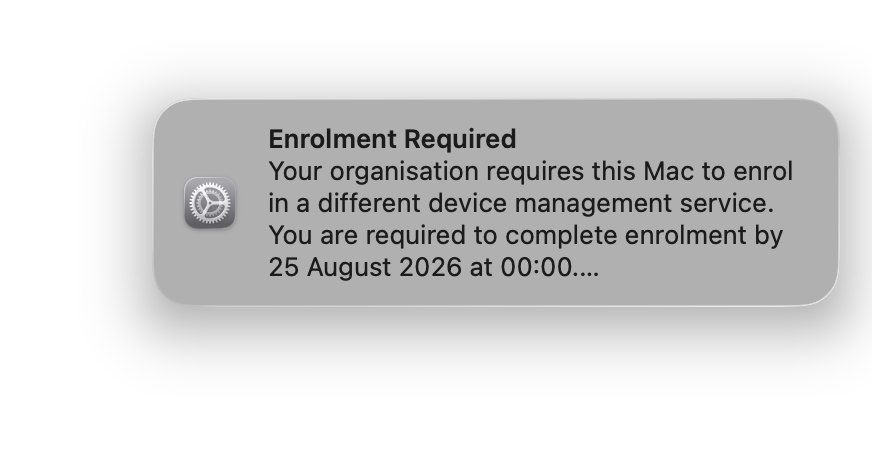
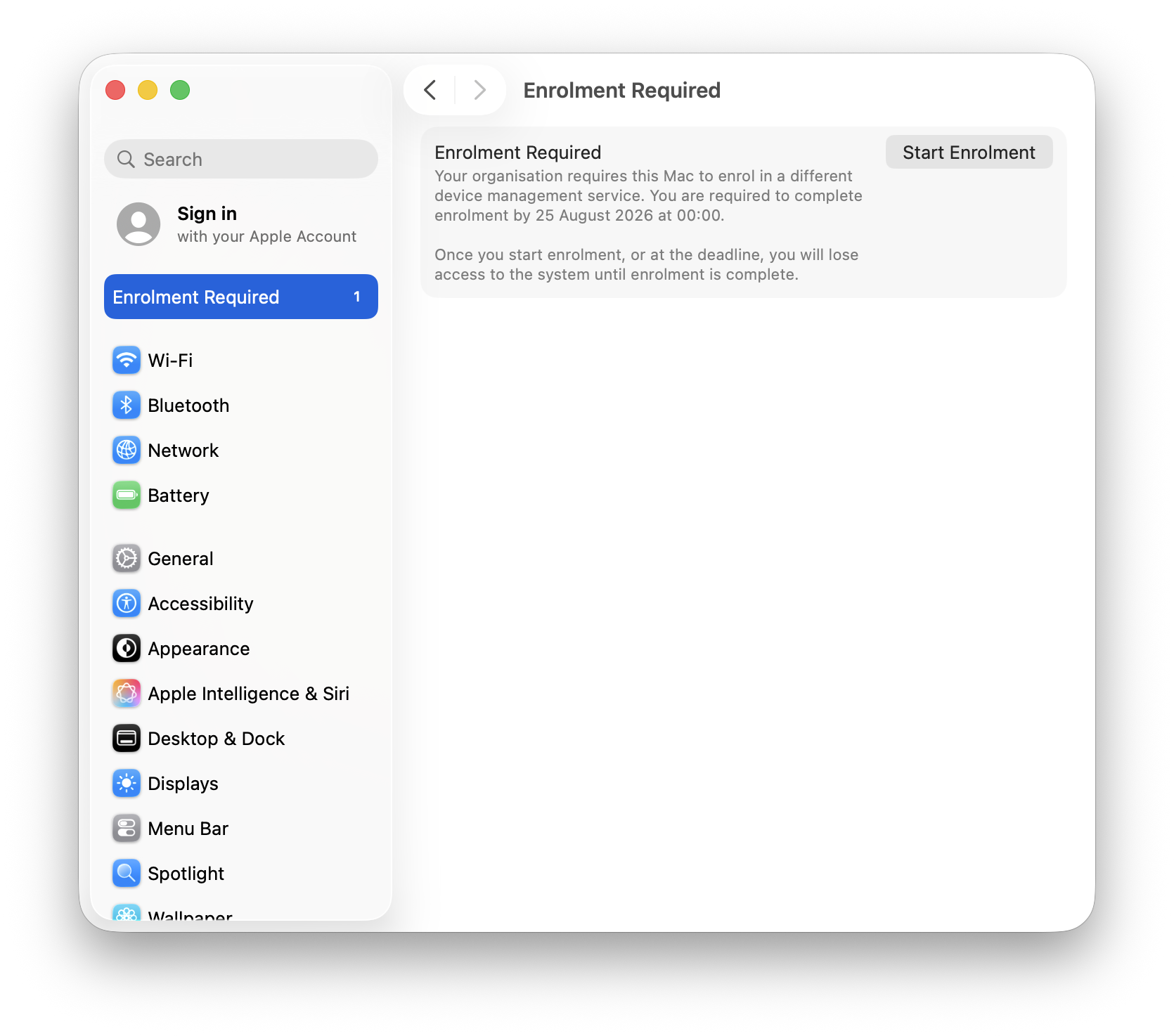
In a similar way to Managed Updates via DDM, when the MDM Migration prompt first appears for a user, they will see a notification in Notification Center.
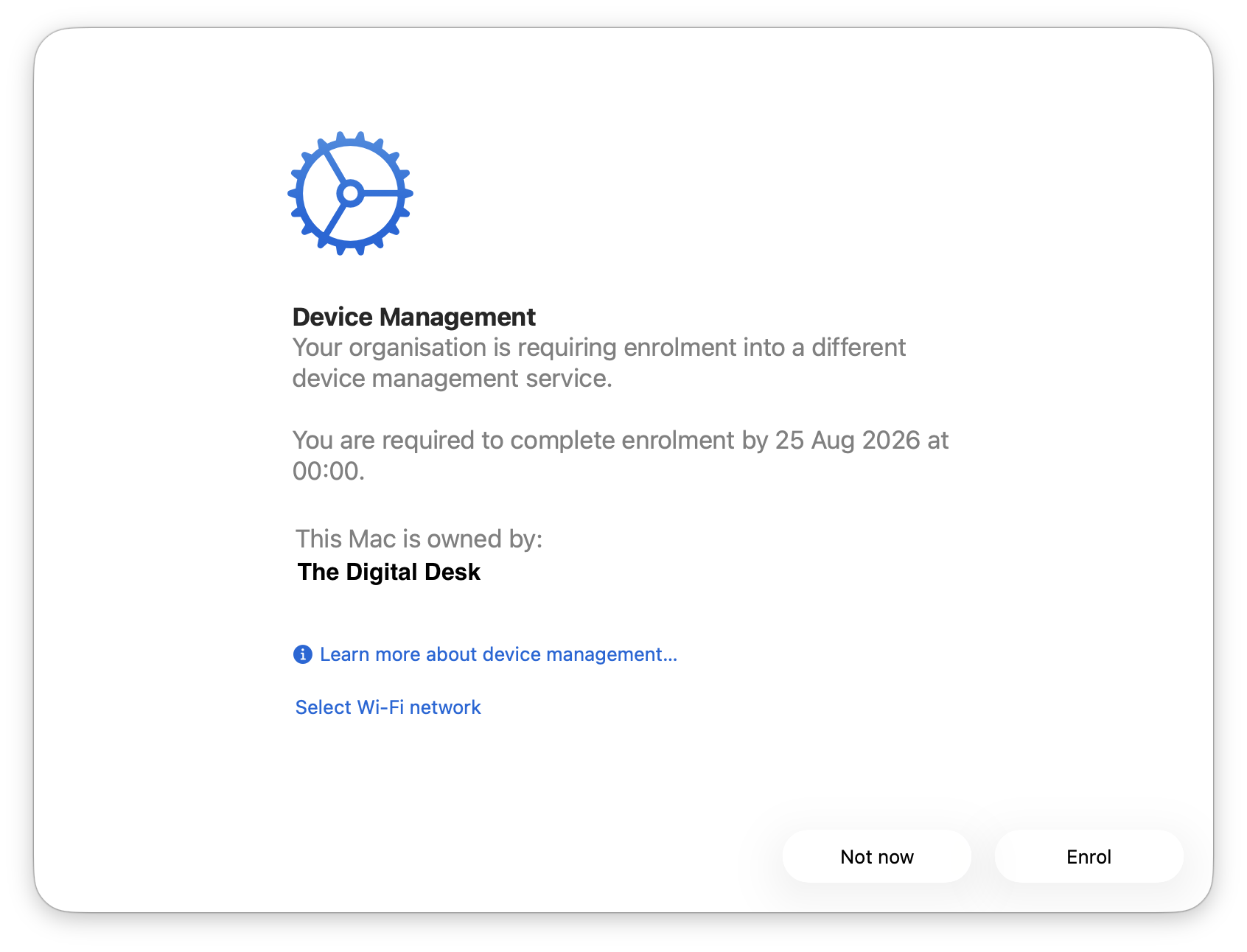
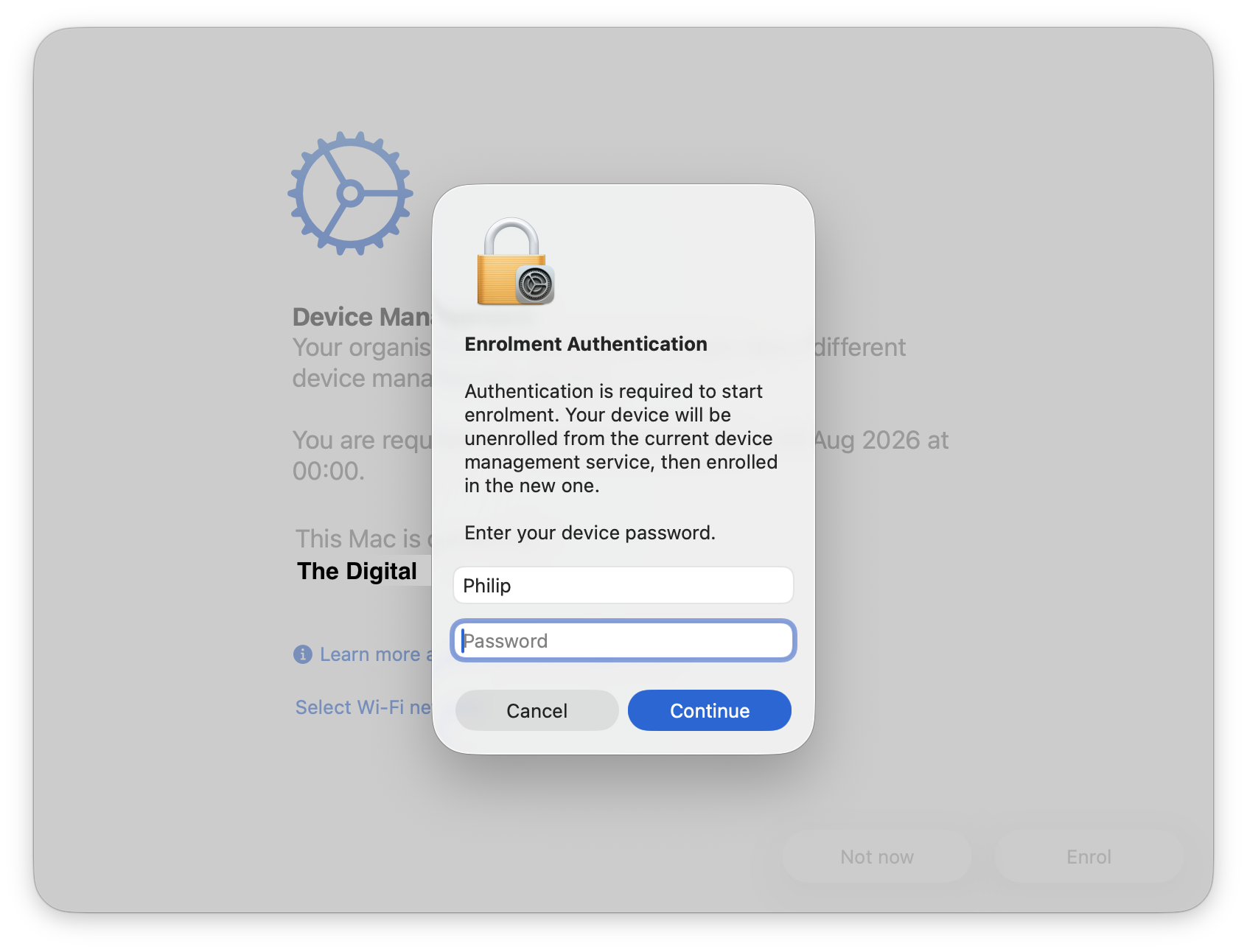
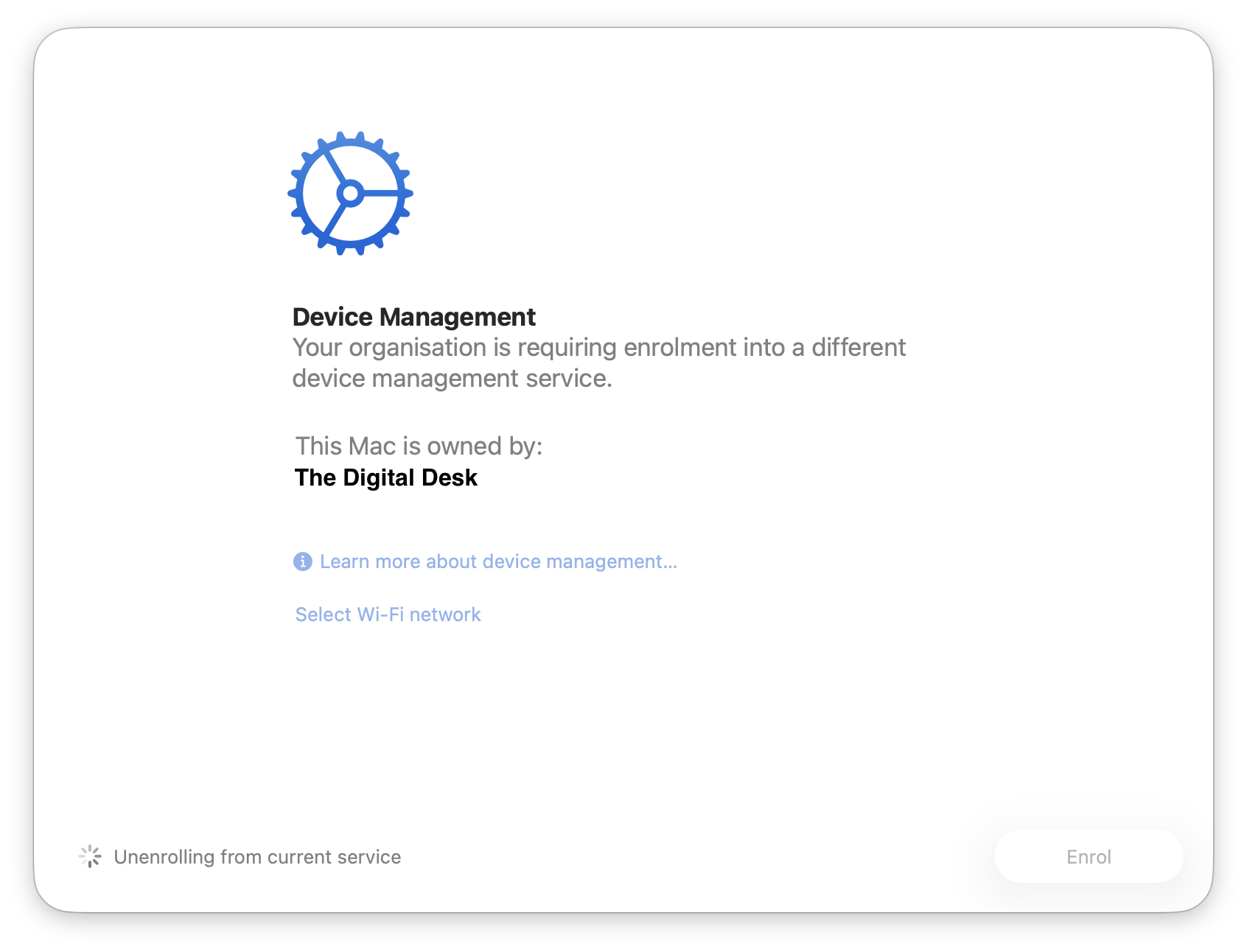
Once they interact with that, the user is taken to System Settings and guided through a full screen enrolment process.
Note that there is a “Not Now” button available to select. I presume this is because I’ve initiated it before the deadline, and that would not show up once the deadline is reached…. (I haven’t tested that, though)
The next images show the process flow seen by the user of the device when they’re completing the MDM Migration process:
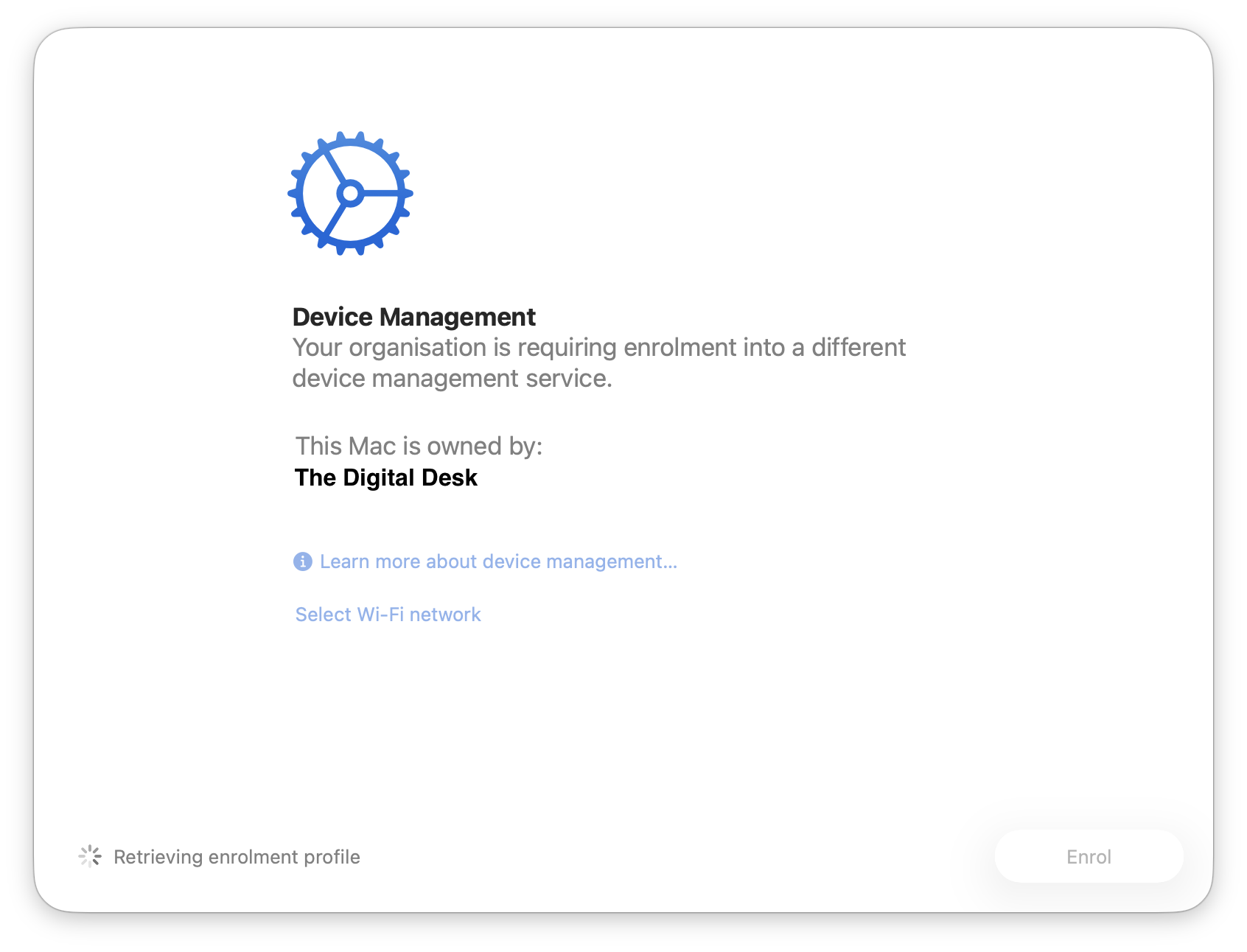
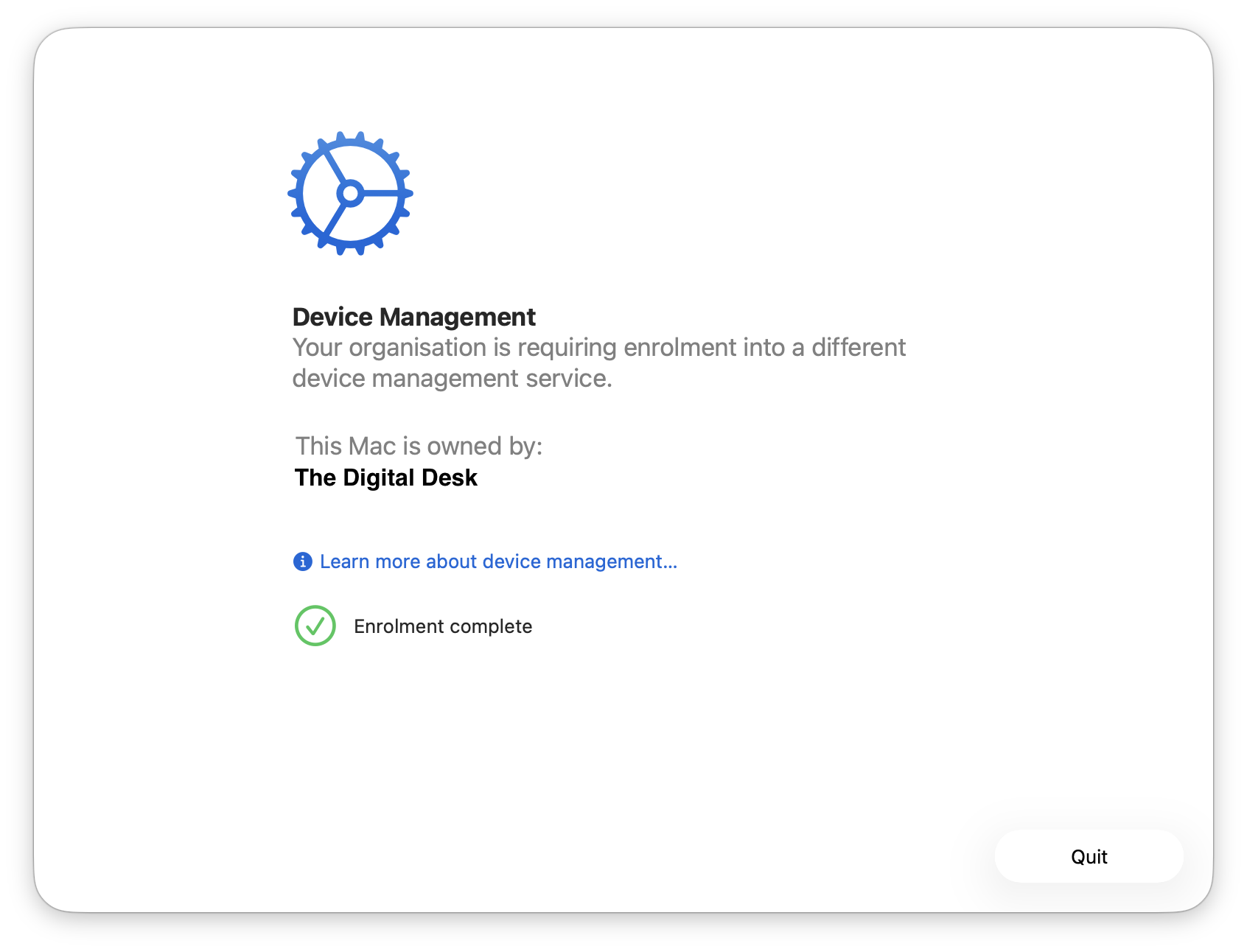
And that’s it!
That’s literally all there is to it.
Nice, but how do we know the user is now MDM-Enabled?
I thought that question might come up…
Keeping my 90s TV show references going - here’s a screenshot I prepared earlier:
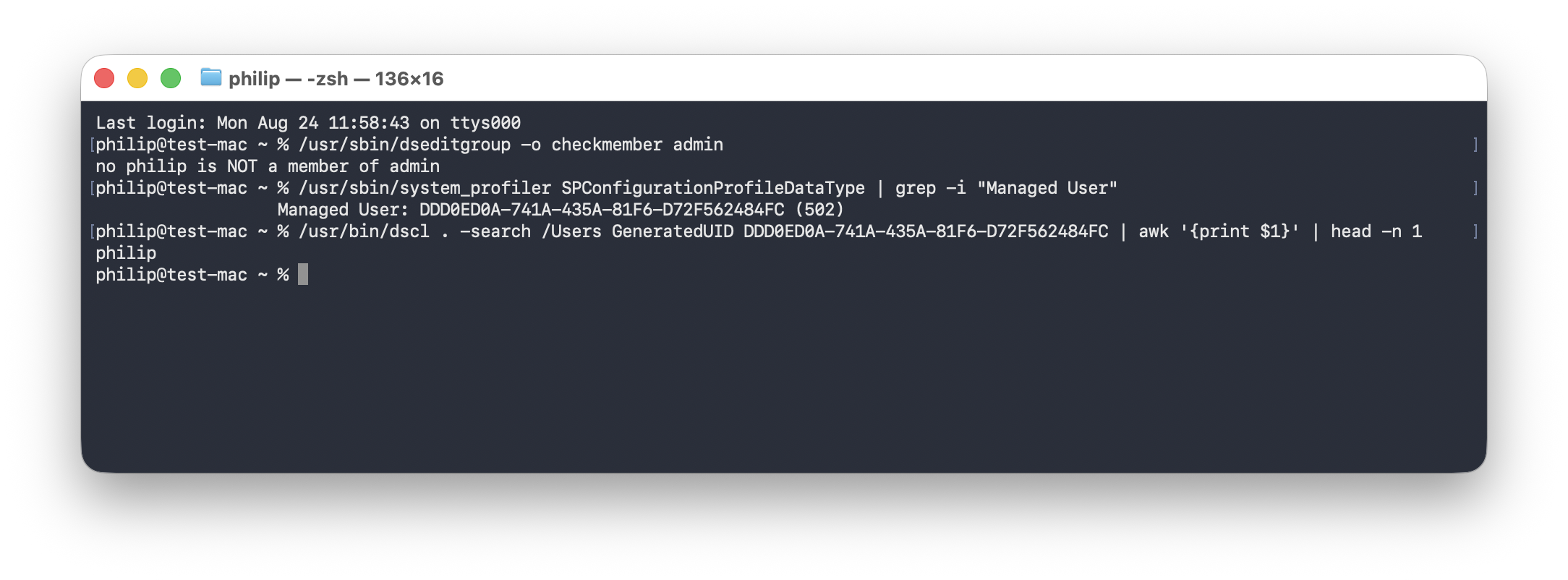
Bonus info
I also spotted while testing this process that there’s a boolean key in the MDM Profile contents named HasUndergoneMigration.
If your devices have never been through an MDM Migration, it’ll likely show 0.
On this device, now it’s been migrated, it shows 1. 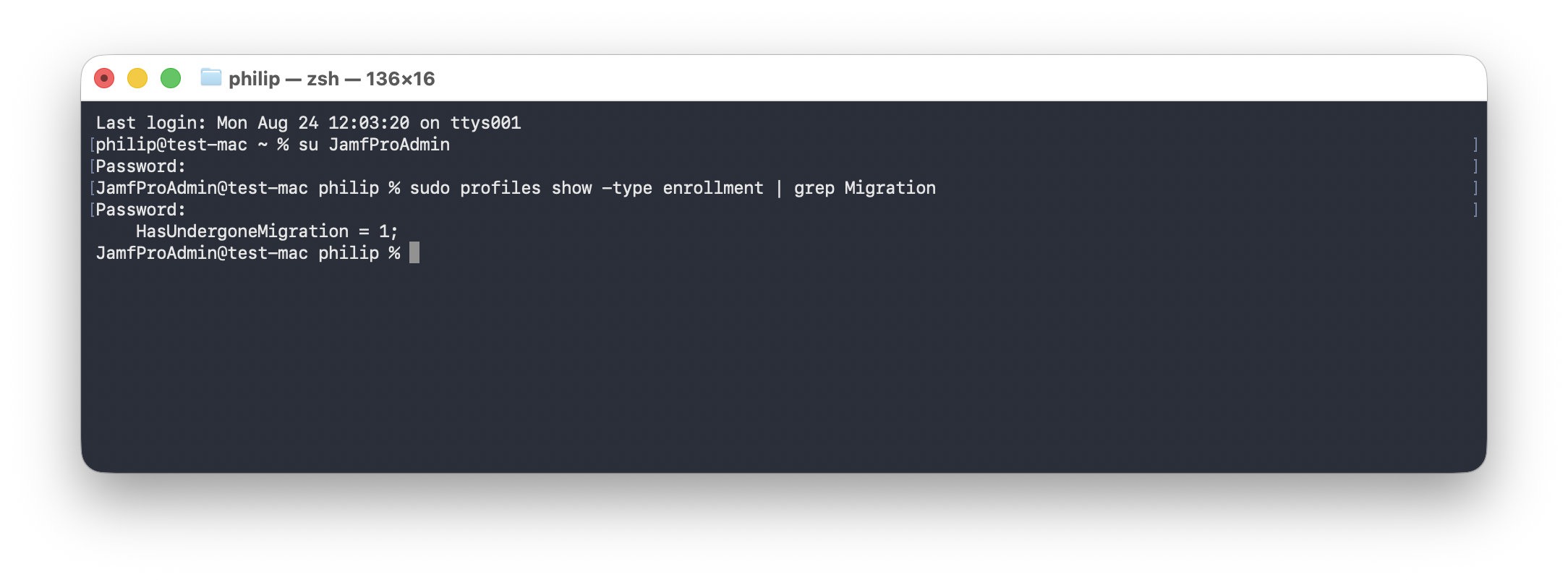
On that note, I did migrate this device a number of times to test this process and to capture the screenshots for this post.
Even after reverting the device assignment and reinstalling macOS via a DFU Restore, this key persisted with the 1 value, so this may be a one-way change on this key.
Couple of caveats
There’s a few gotchas that are worth calling out here. Armin mentioned to me that in Jamf Pro, running this may re-trigger any policies attached to the enrollment complete trigger.
I also wonder, but haven’t tested, that if your re-enrollment settings are set to flush policy logs, you might end up with policies attempting to reinstall.
There’s probably others too, but the list of combinations and environmental nuances could almost be infinite, and I do need to finish this post at some point!
Ultimately, if you’re interested in this approach, the only way to see what might happen for you would be to test in your own environment.
And then test again!