Admin-eers, standby... 3, 2, 1... ACTIVATE: Stacking DDM predicates to lean out Jamf Blueprints
Activation Predicates are a powerful way of controlling which devices in your fleet are applied with which controls, without having to create and maintain endless blueprints and scoping groups.
What’s an Activation Predicate?
Whenever I hear the phrase “Activation Predicate”, my mind is instantly taken back to my late 90s/early noughties childhood watching Robot Wars on a Friday evening.
I like to think that when a Declaration lands on an Apple device, it checks for any predicate-based activation conditions, and if it matches there’s a tiny Craig Charles shouting “3, 2, 1….ACTIVATE!” and those settings are applied.
In reality, Activation Predicates aren’t nearly as exhilarating as watching homemade robots knocking seven bells out of each other, but…now that Jamf has included this ability within the Blueprints toolset, they’re a really powerful way of reducing the number of blueprints you need to manage different configuration permutations across your fleets.
Apple’s Deployment Guide states:
Activations can include optional predicates that determine whether the configurations referenced in the activation are applied to the device.
…
The benefit of activation predicates is in smart use cases, where you can preload devices with declarations, which automatically activate when the device management service sends the correct management property. This approach can help avoid complex grouping and scoping on the service side.
To try and demonstrate how you can use this, I’ll use the example of controlling access to Beta updates to show what can be achieved with this, and how it can help reduce the number of blueprints you and your fellow admins may have to create and maintain.
The example in this post is based on macOS, but the ability to use Activation Predicates is available on other Apple Platforms.
Previous configuration
With the release of AppleOS 26.0, Apple announced the deprecation of Software Update controls via a profile with the com.apple.SoftwareUpdate preference domain.
When using a config profile approach, it was cumbersome, but understood, that you could have a core set of controls included in two profiles, and then the value of the AllowPreReleaseInstallation key would either permit, or deny access to Beta OS Versions through the Software Update mechanisms in System Settings.
Jamf allowed for targets and exclusions so you could easily set up a smart/static group to move devices out of scope of one profile, and into scope of the other, allowing the appropriate controls to be applied to your devices.
So you’d end up with something like this:
- Profile denying access to Beta
- Scoped to All Computers
- Excluded from Beta tester static/smart group
- Profile permitting access to Beta
- Scoped to Beta tester static/smart group
This worked great.
All of your devices have some configuration applied to the Software Update settings, and you could easily allow a computer to access the Beta seeds by modifying its group memberships in Jamf Pro.
Now though, Apple has deprecated that configuration profile, and it has been confirmed to be removed in macOS 27.0
So…what do we do now then?
 In line with Apple’s WWDC26 statement about DDM being the standard for Device Management, the ability to configure Software Update settings via configuration profile will be removed, but Apple provided the capability to manage these same settings via DDM with macOS Sequoia.
Apple’s Developer Docs contain more info on this.
Within this declaration type, this example will make use of the Beta dictionary.
This is a very stripped back example of what the declaration content will contain:
1
2
3
4
5
"Payload": {
    "Beta": {
        "ProgramEnrollment": "AlwaysOff"
    }
}
Declarative controls take a most restrictive wins approach to multiple keys with conflicting values.
If we push one declaration to the device that sets the Beta dictionary key value to Allowed or AlwaysOn, and an additional declaration that sets the same key value to AlwaysOff, the ability to access Beta OS versions will be denied due to the AlwaysOff control winning.
To stack our controls, we first need to create a base configuration that will apply to all of our devices.
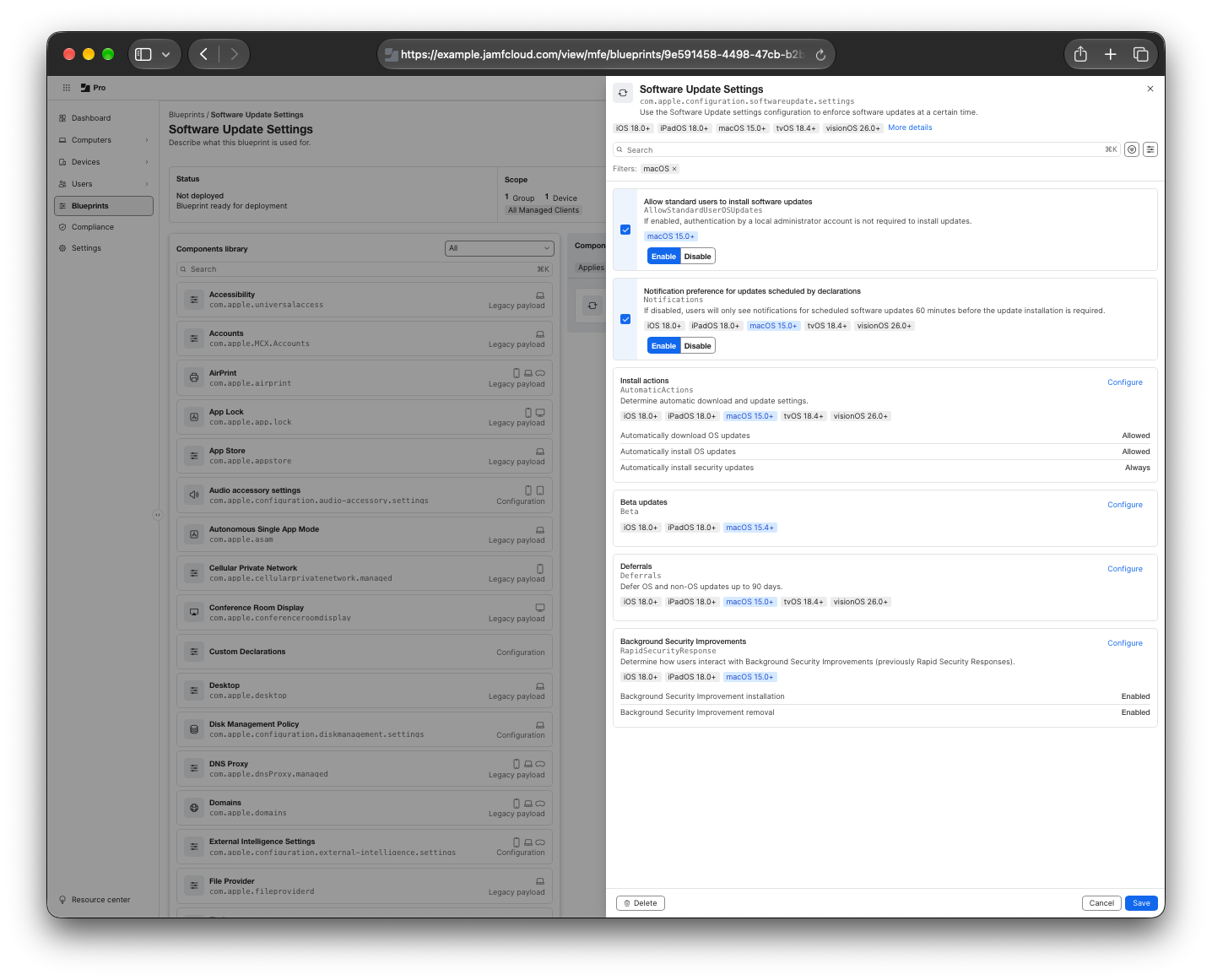
Notice that we’ve deliberately omitted the inclusion of any Beta controls here.
That’s because this key will apply different values based on the permissions we want to set: some users will be allowed to access Beta versions, most will be denied.
Make sure that the component block doesn’t have any custom activation conditions set, so that it applies to all computers that are in your Blueprint scoping target.
Given this is core settings for all devices, I’m using All Managed Clients as my scoping target. 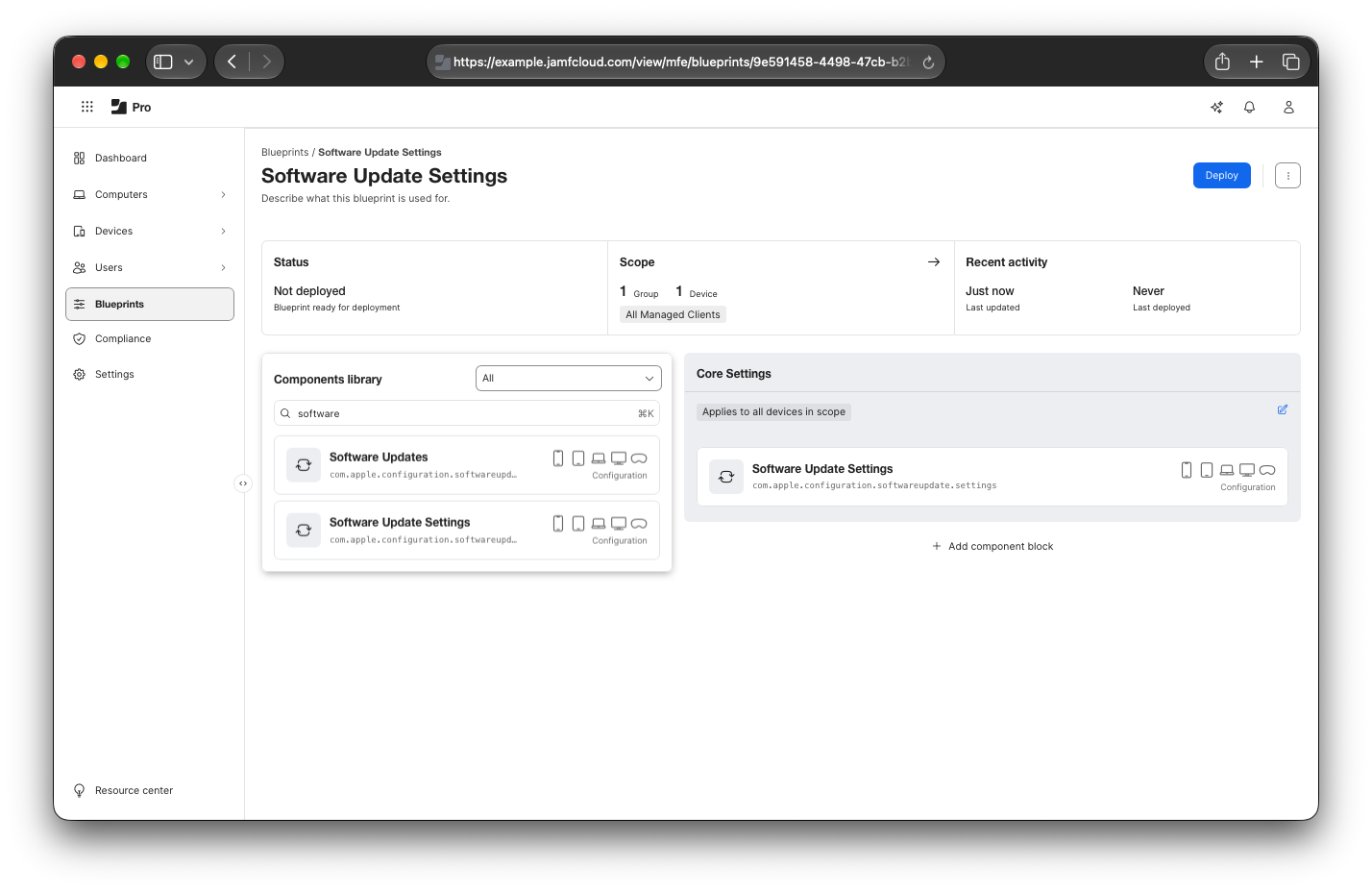
If we deploy this now, all of our devices will receive the controls, but as we’ve not set any Beta controls, all devices will be able to access the Beta seeds if they attempted to.
This is what that Declaration would look like, client side: 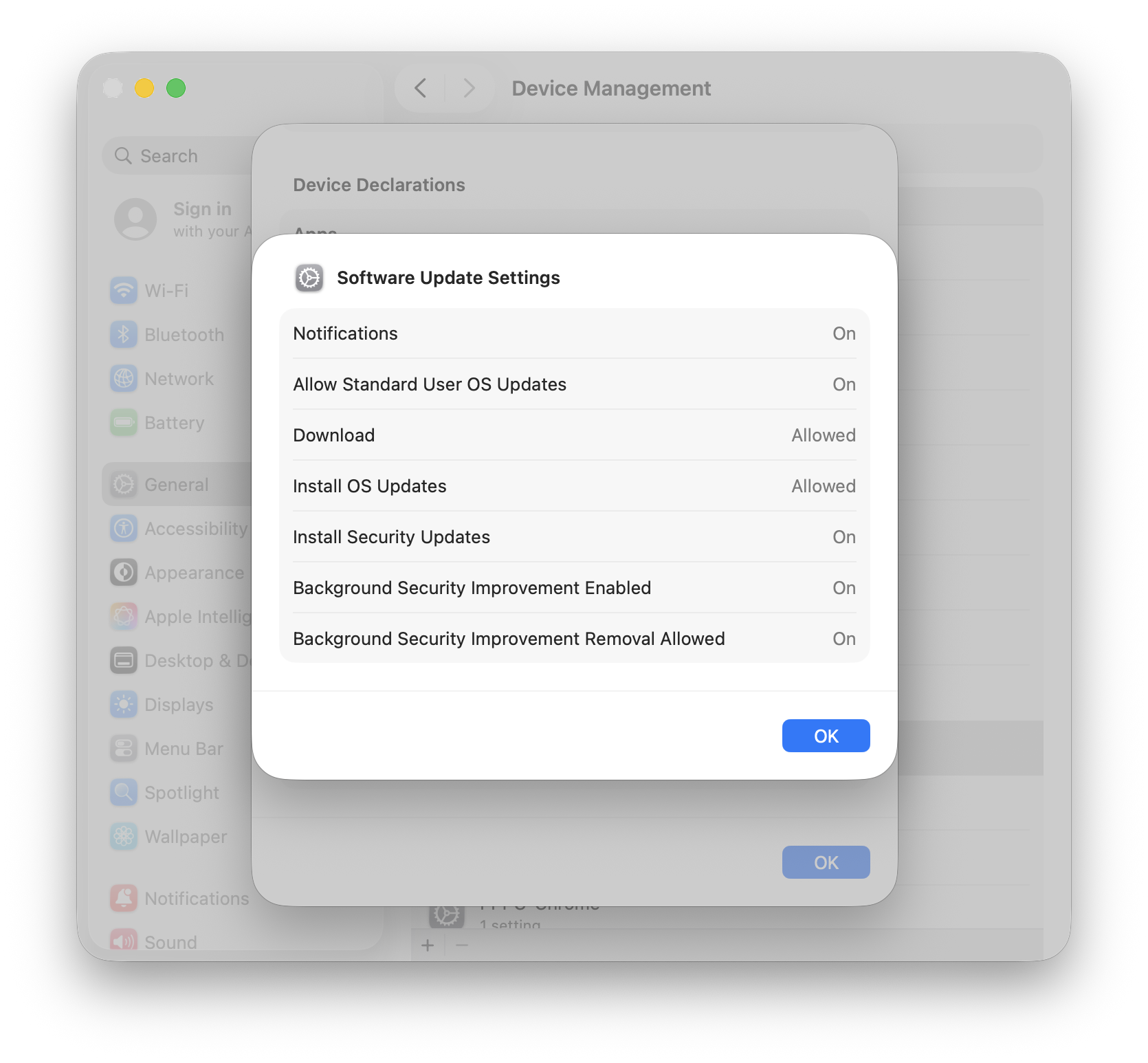
Okay, but Beta versions are still permitted?
This is the fun bit!
As declarative controls are ‘most restrictive wins’, we then want a secondary control that denies Beta access.
As we want Beta access on some devices where its use is approved, we’re going to want to ensure that the restriction doesn’t apply to all devices.
This is where the activation predicates show their magic.
For the purposes of this demonstration, I’ve already set up a Static Group in Jamf Pro called: Beta == Allowed.
I’ve added a second component block to my Blueprint called “Beta Updates denied”, and configured the Software Update settings to disallow Beta updates: 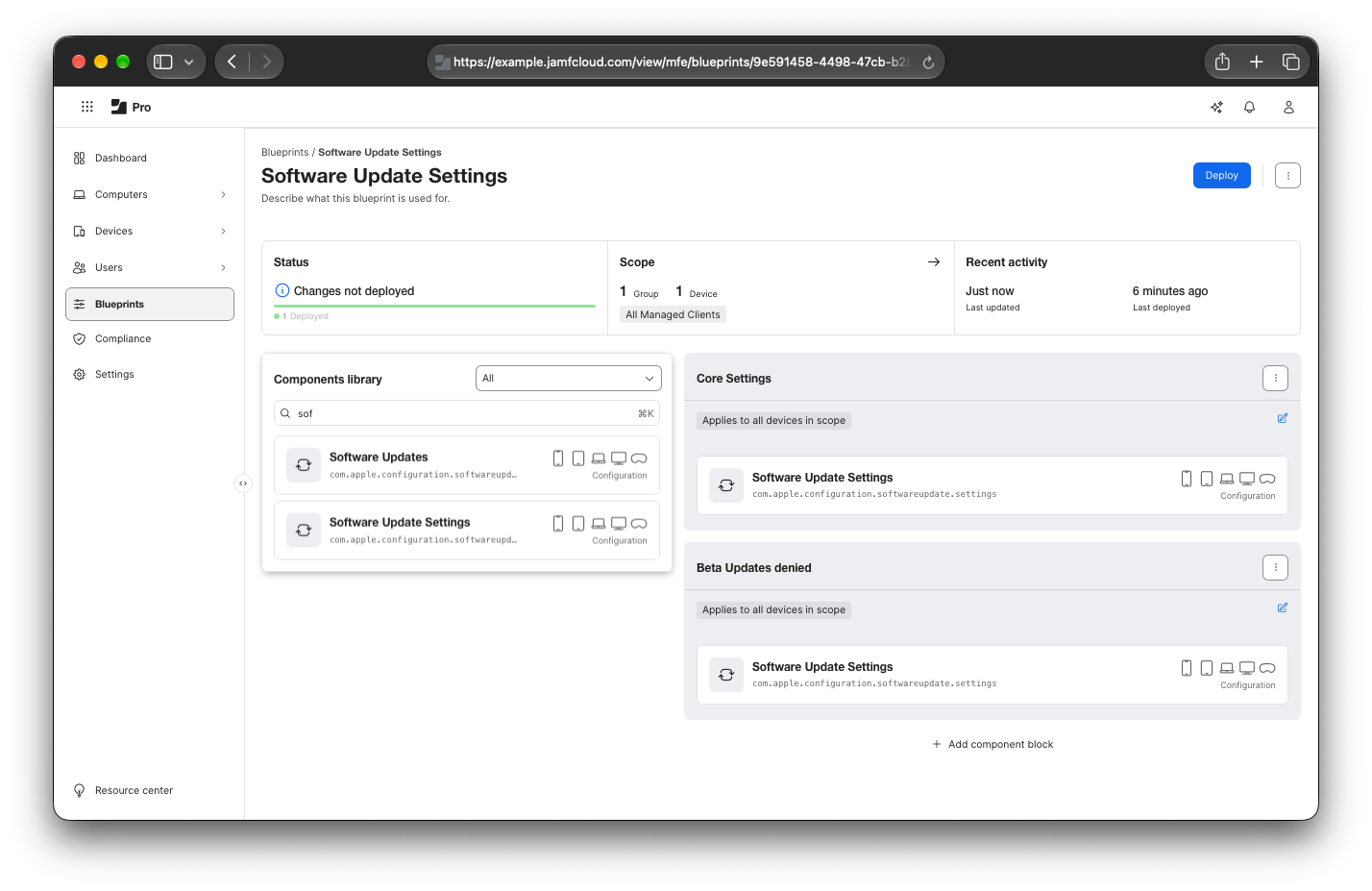
Here’s the contents of the Software Update Settings contained in that second component block: 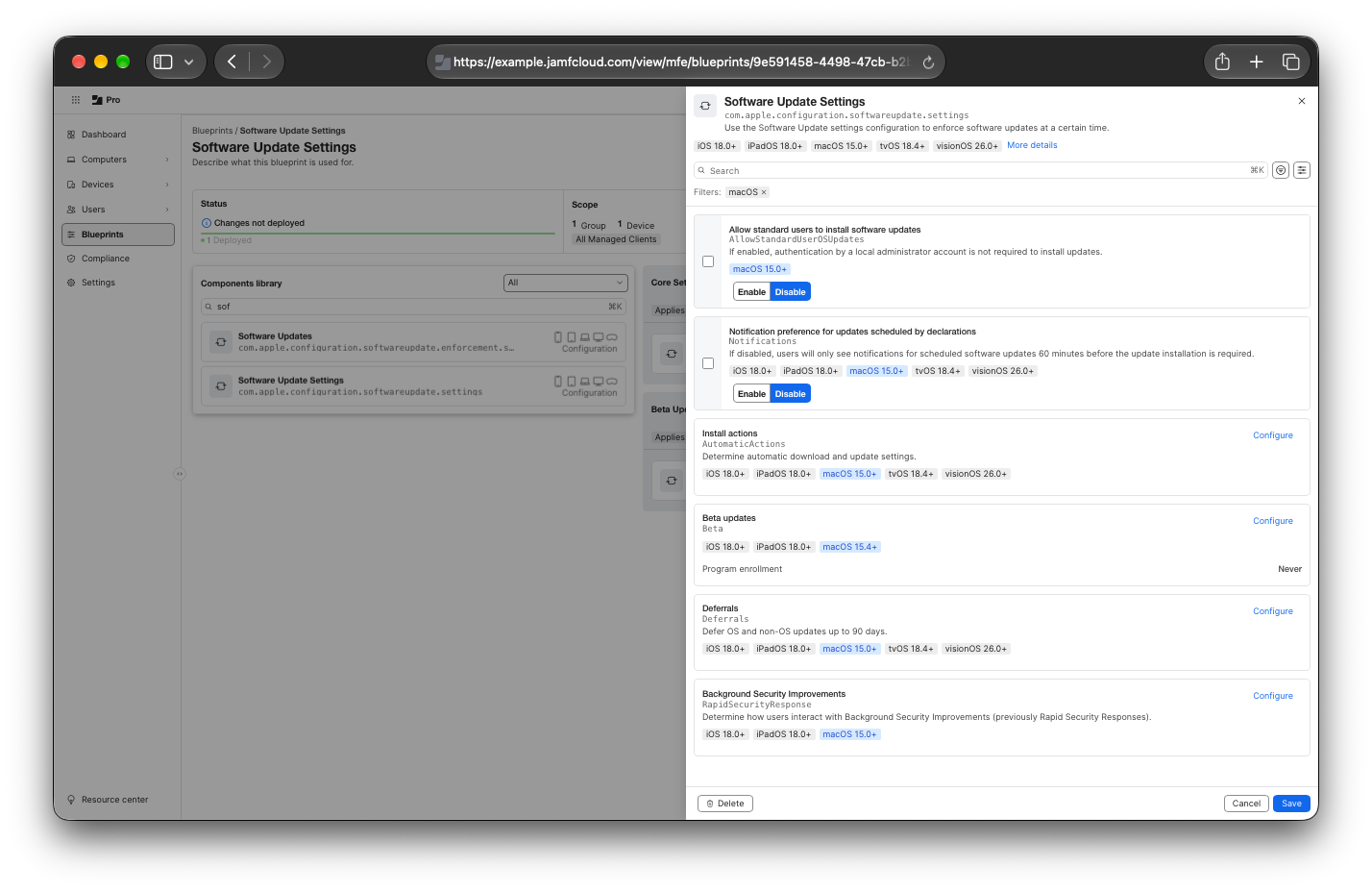
Once that’s saved, I’ve then modified the activation condition on the second component block, so that it only activates on devices that are not a member of the Beta == Allowed static group.
Setting the activation condition
Once this is saved and deployed, that’s all there is to it!
Some caveats…
Doing it this way will mean you have two Software Update Settings entries under Device Declarations. One will be for the core settings, and the second will be for the beta controls. 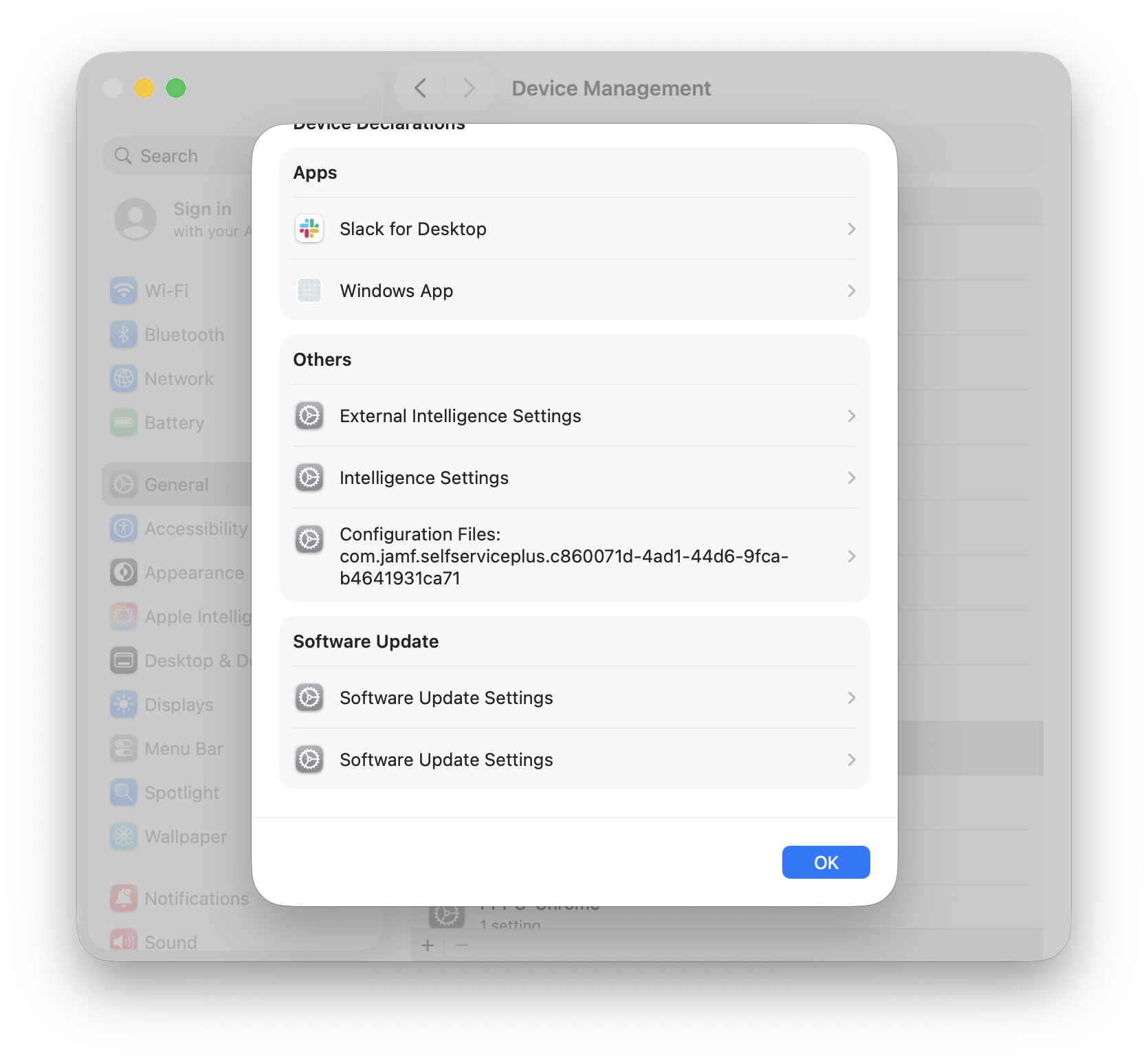
The beta controls declaration will show that it’s denying Beta access, but it will also show that it is setting other keys: 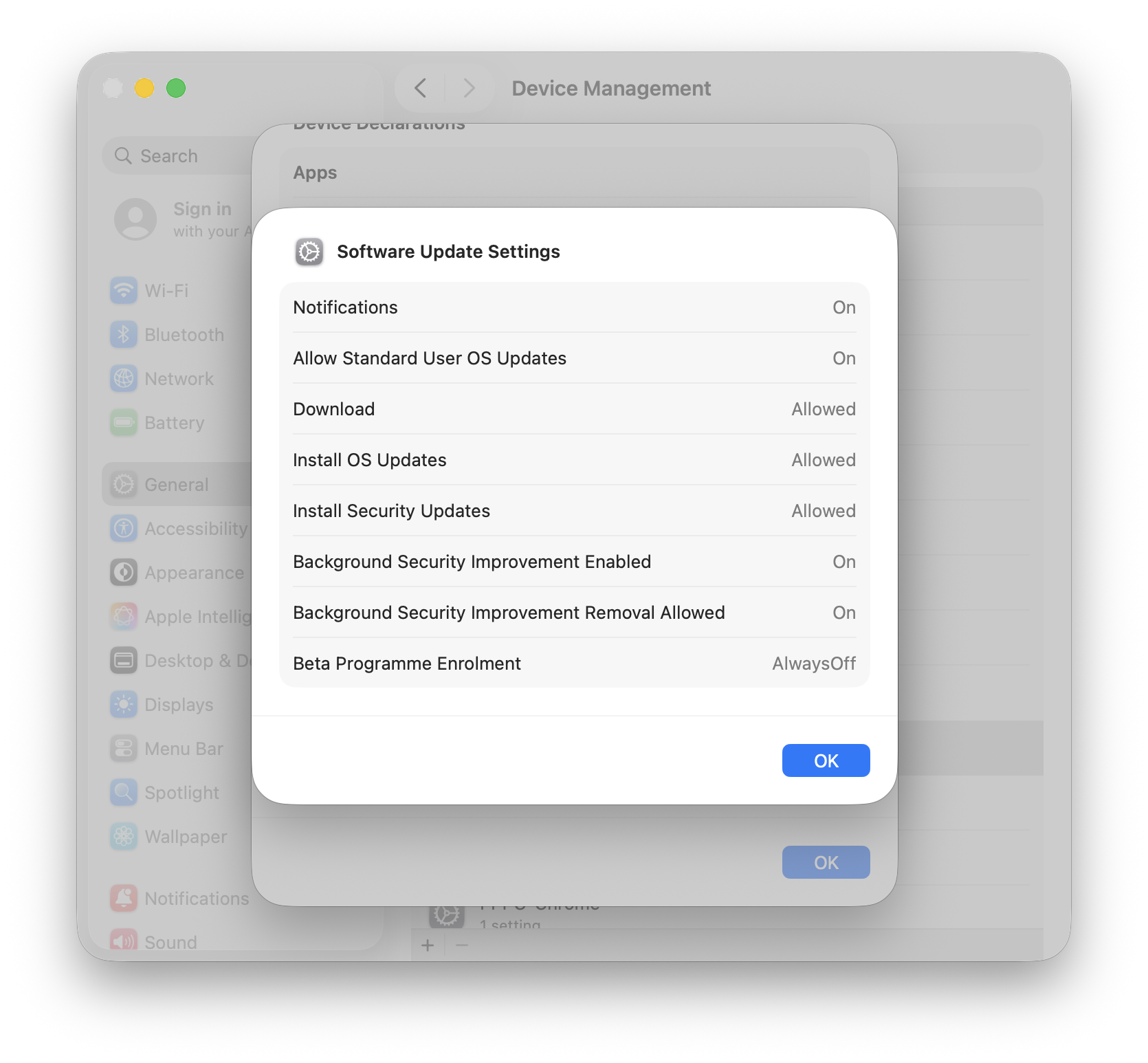
At the time of writing, this looks to be a product of Jamf’s implementation of the com.apple.configuration.softwareupdate.settings declaration type.
If we do this with a Custom Declaration, these additional keys are not deployed.
This isn’t a huge issue at the moment, as most restrictive wins, but for ease of support it might be easier to only see the keys you’re wanting to control.
To push a Custom Declaration for this, you’ll want to set the following details:
| Setting | Value |
|---|---|
| Kind | Configuration |
| Channel | System |
| Type | com.apple.configuration.softwareupdate.settings |
Payload:
1
2
3
4
5
{
  "Beta": {
    "ProgramEnrollment": "AlwaysOff"
  }
}
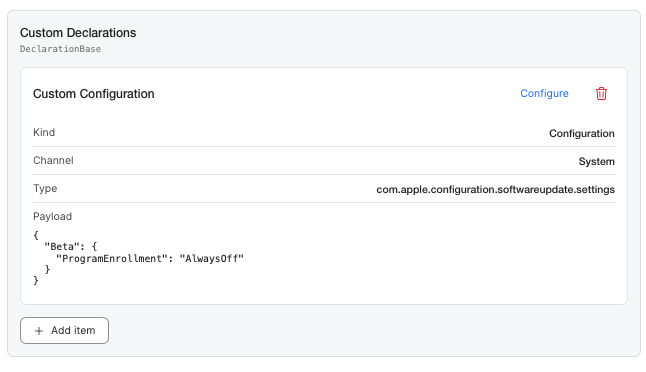
When we deploy this blueprint, the client-side declaration configuration only contains the default top-level keys, and the Beta settings. 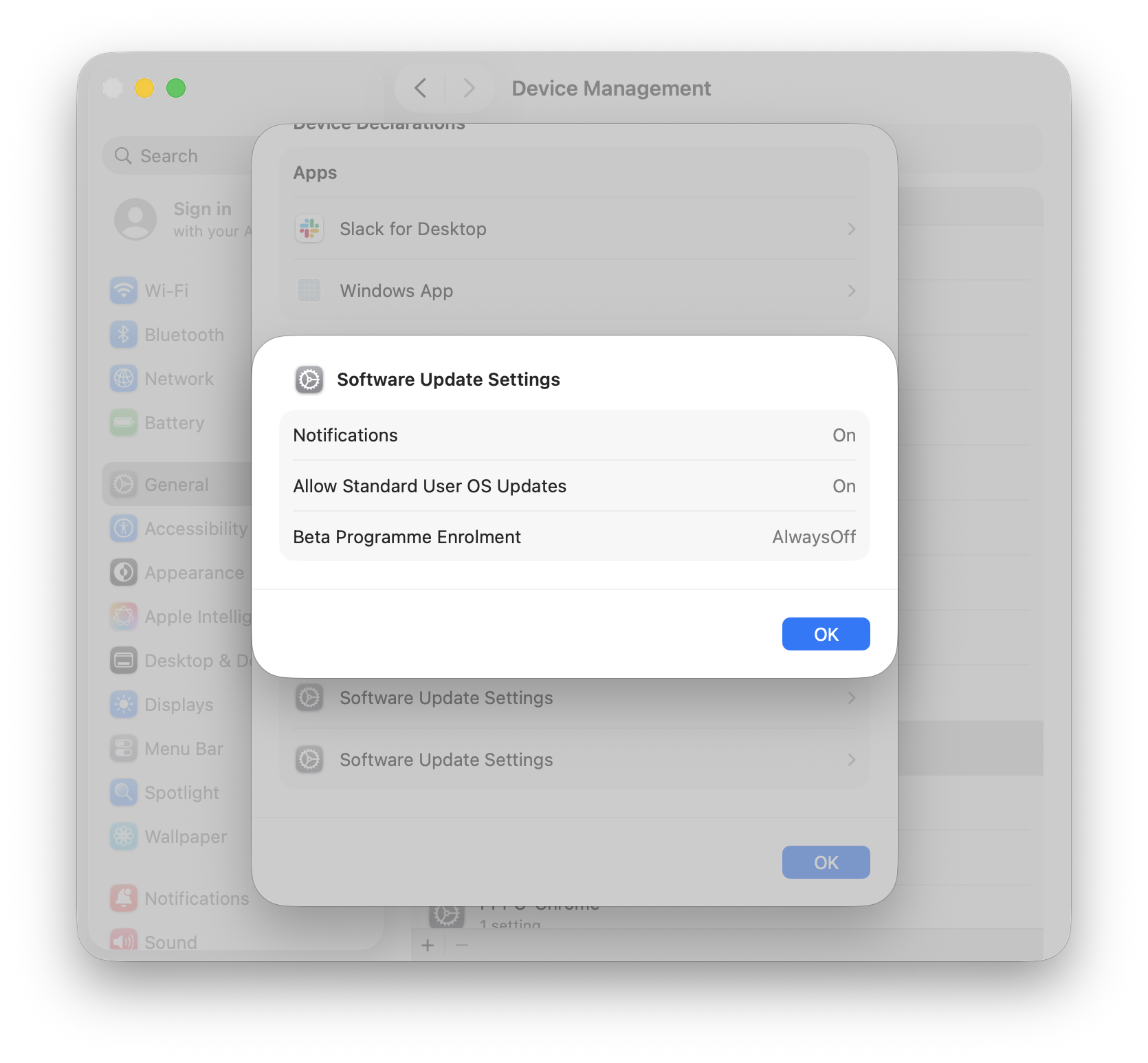
Right-o, but I need to then allow some users to use Betas?
So far this post has only shown applying core settings, then additionally a setting to deny betas.
This is because the snippets and details so far have only included examples where the device is not a member of the static group I included in my activation condition.
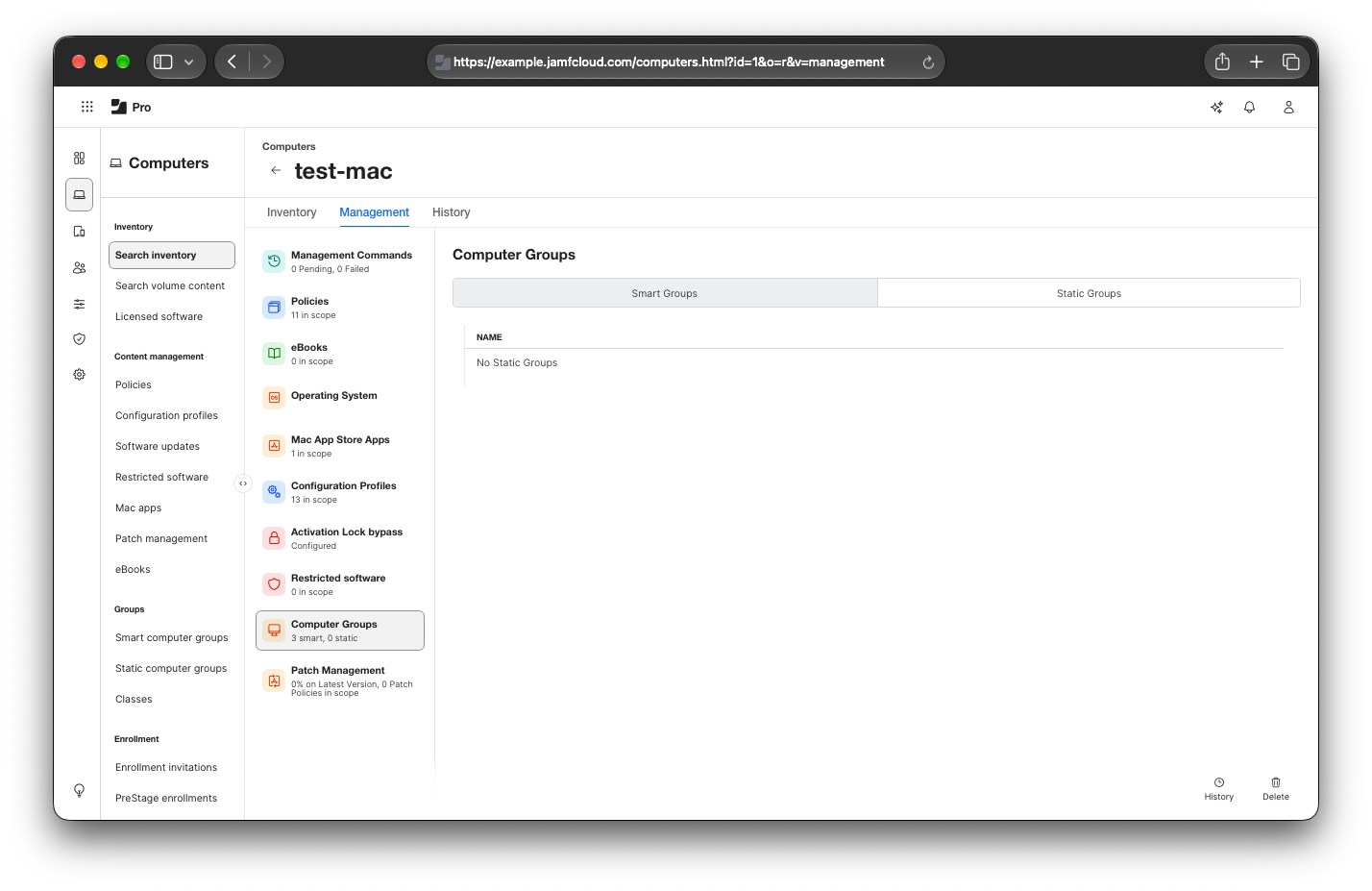
So, if I want to permit this device to access Beta Seeds, I can add it to my Beta == Allowed static group, and automagically, the configuration that prevents Beta access is lifted, leaving just the core settings remaining.
Client side configuration changes with group membership changes
That’s all there is to it!
The above is just one example of what’s possible leveraging activation predicates. There are lots of possibilities and lots of power in the capability we’re given here.
Used in the right way, and depending on the complexity of your organisation, it may help you to significantly reduce the number of Blueprints you need to maintain, helping you spend more time on other things.
Catch you next time!