App Privacy, Declarative Style: Reducing privacy prompt fatigue in macOS 27
Say goodbye to endless permission pop-ups with macOS 27 Golden Gate. An example of how using the new App Privacy declaration type can cut down the number of prompts seen by your users.
What is App Privacy?
Apple’s approach to privacy is well-known and well documented.
For an app to have access to your Camera, Photos, Calendar, Reminders, Local Network, Location, Microphone… (the list does go on!) this permission must be expressly given by you.
If you’ve been using or managing Macs through the recent Tahoe era, you’ll most likely be familiar with this pop-up:
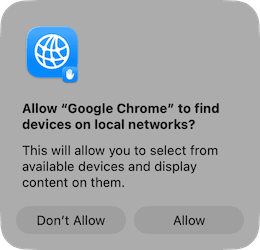
These prompts are designed to put the user in the driving seat when it comes to privacy on the device they use, but this can cause issues for Mac Admins as users may inadvertently deny a permission that’s needed for devices to function seamlessly in their organisation.
macOS 27 Golden Gate takes a step forward in helping smooth that path for Mac Admins, and by extension, their users.
How is this going to help me, or my users?
At WWDC26, Apple announced a consolidated privacy prompt. This replaces prompts for individual permissions that appear when an app, or a website accessed via Safari, try to use a feature on the device that requires user permission.
So instead of a user getting a prompt to allow access to Location Services, and then a second prompt to allow access to the Camera, and then a third prompt to allow access to the Local Network, and then a fourth prompt….(need I go on??)
The user now gets a single prompt to allow all of the necessary permissions as defined by their organisation.
Important to note: the user can still deny this access. This does not silently enable it for them; it simply guides the user to set the correct permissions, all in a single click.
Sounds useful! How do I do it?
Jamf have recently released support for this control within the Blueprints UI.
However, to keep this post relevant to Mac Admins who may not use Jamf, I’ll touch first on how to do this with a custom declaration, and then how that translates to the options in the Blueprints UI.
In all cases, it’s important that your users are MDM-Enabled as this declaration is only applicable to the user scope on macOS. If your users aren’t MDM-Enabled, my previous post gives an example on how to retroactively enable them.
In both cases, I’ll be using the Zoom Workplace desktop app for the examples here.
To build the Declaration, in a similar way to PPPC/TCC profiles, you need to point the declaration to the relevant app by using the Bundle ID and the Designated Requirement.
To get the Bundle ID of an app, run the following in Terminal:
1
codesign -dv /Applications/zoom.us.app
And the Bundle ID is returned with the header Identifier. 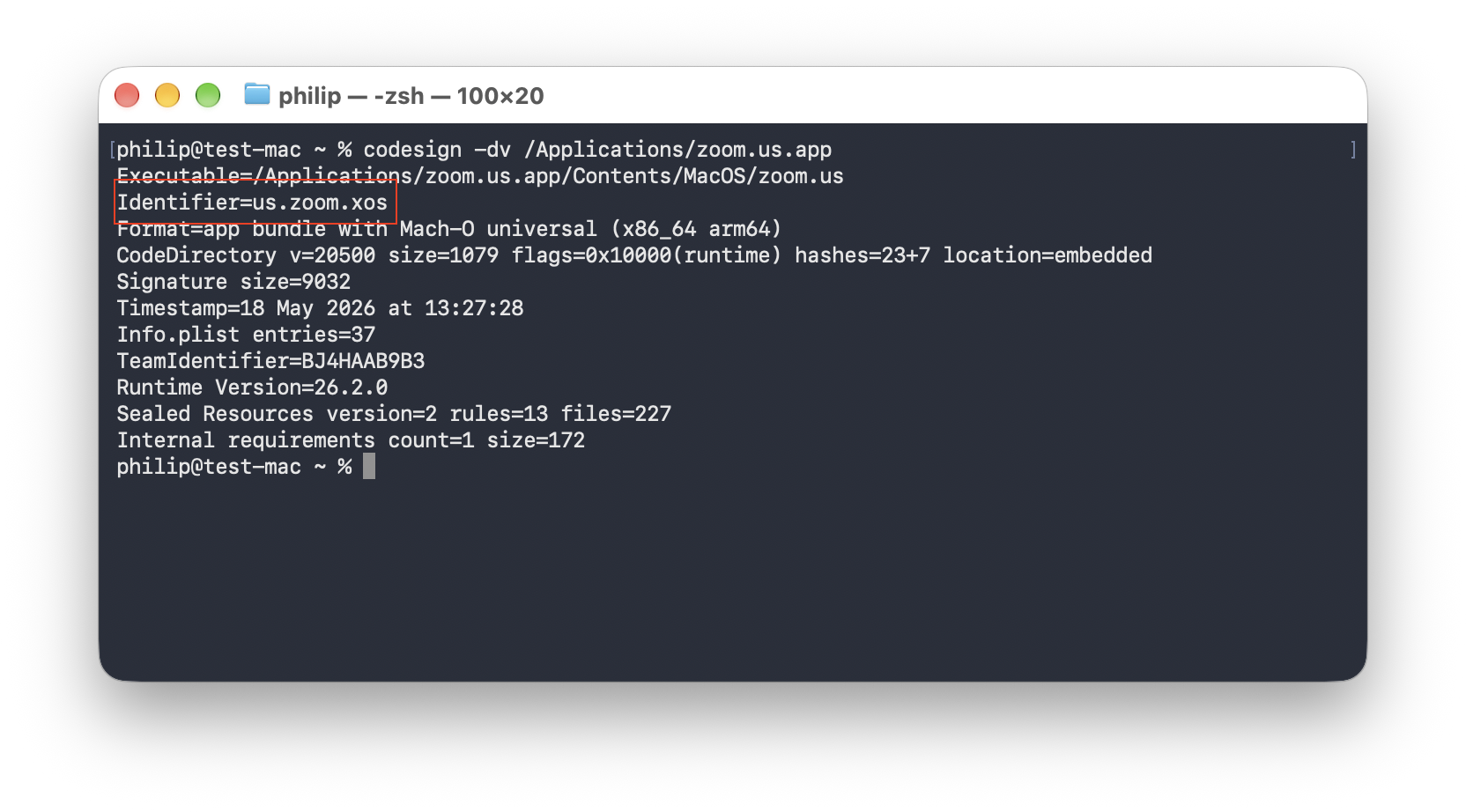
To get the Designated Requirement, run the following command:
1
codesign -d -r - /Applications/zoom.us.app
The part we need here is everything after designated => 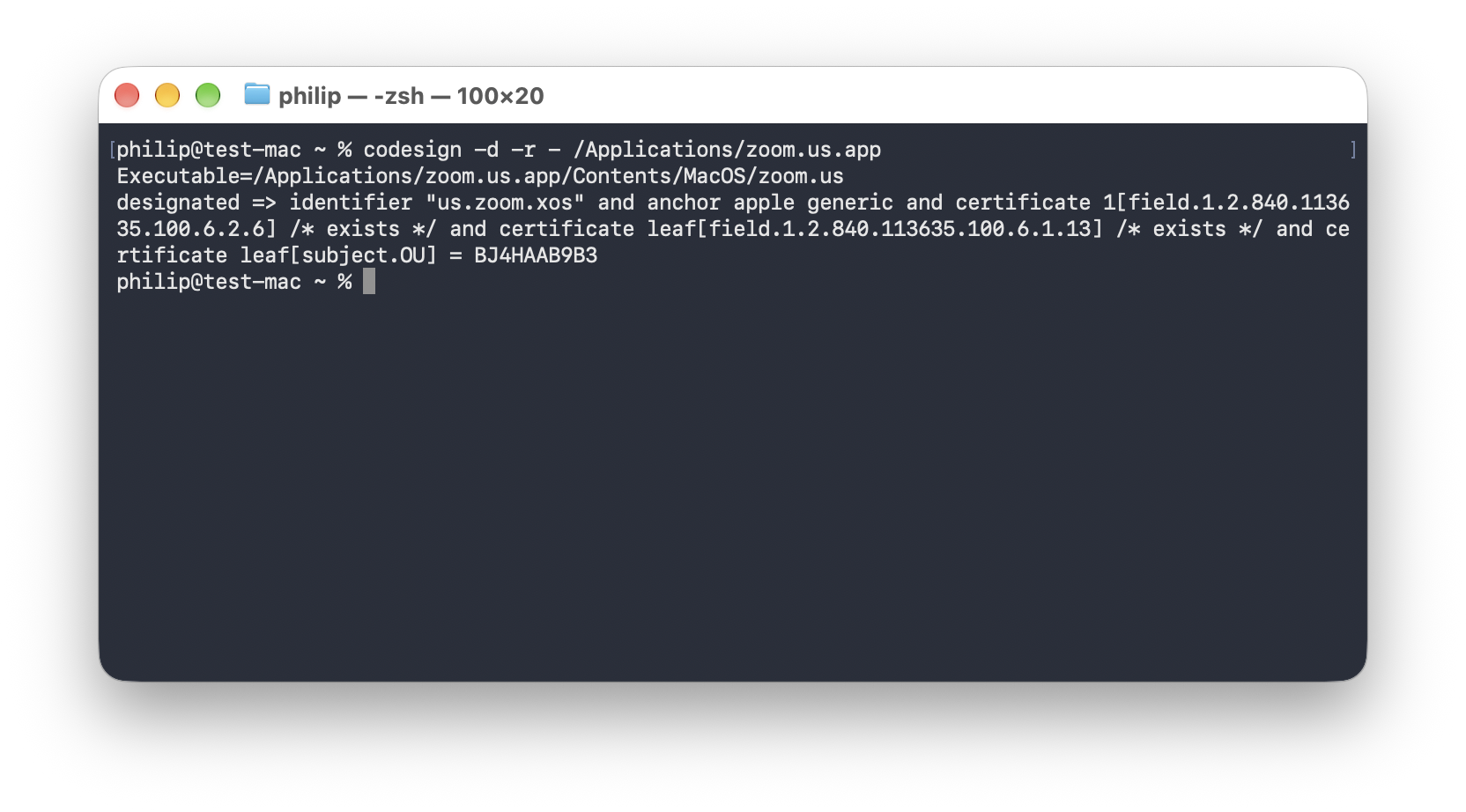
Custom Declaration
Now that we’ve got all the relevant information, it’s time to create the declaration.
The contents of my custom declaration are:
- Kind: Configuration
- Channel: User
- Type: com.apple.configuration.app.settings
- Payload:
1
2
3
4
5
6
7
8
9
10
11
12
13
{
"Privacy": {
  "PermissionDefaults": {
    "us.zoom.xos {identifier \"us.zoom.xos\" and anchor apple generic and certificate 1[field.1.2.840.113635.100.6.2.6] /* exists */ and certificate leaf[field.1.2.840.113635.100.6.1.13] /* exists */ and certificate leaf[subject.OU] = BJ4HAAB9B3}": {
      "Camera": "Allow",
      "Microphone": "Allow",
      "LocalNetwork": "Allow",
      "Accessibility": "Allow",
      "OrganizationJustification": "This app is used for Video Conferencing"
    }
  }
}
}
Note that because this is JSON, it’s important to escape the double quotes or else the JSON object will not be valid.
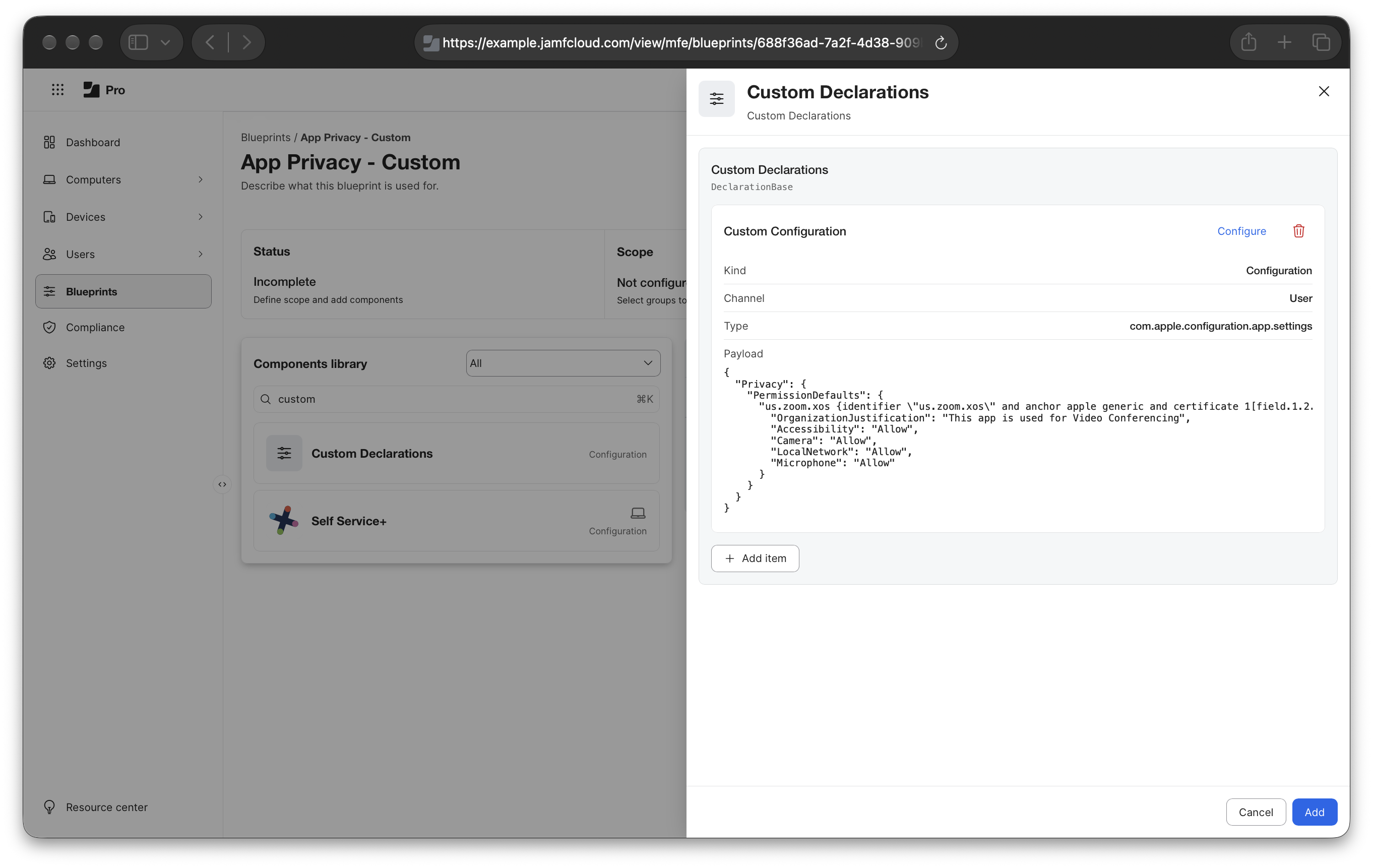
We can see the Declaration lands on the client:
App Privacy declaration installing on client
Next time I launch Zoom, I’m presented with the consolidated prompt to allow the services configured in my Declaration.
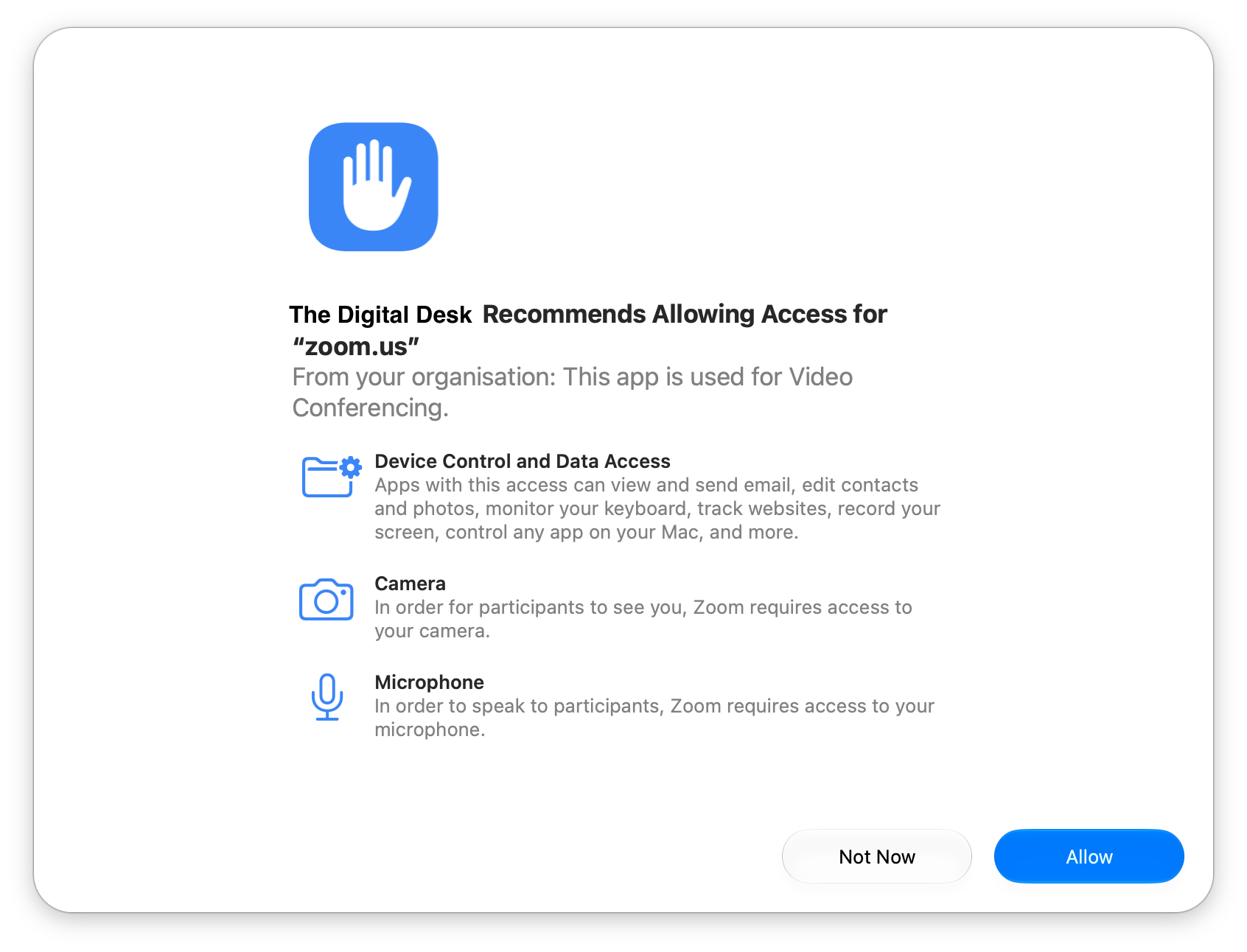
I noticed that I wasn’t prompted to approve Local Network access at this time, but this looks to be because Zoom hasn’t included Local Network in the app entitlements, and the app hasn’t yet attempted to communicate with devices on my local network.
Also note that Apple has renamed Accessibility to Device Control and Data Access within the OS.
Jamf Blueprints UI
Using custom declarations is great, but Jamf have made this easier by introducing native support within the Blueprints UI.
The new App Settings component automatically formats the payload, meaning you can bypass the manual JSON object construction altogether.
If you’ve ever lost twenty minutes of your life hunting down a missing backslash or an unescaped double quote in a JSON payload, this UI will save you that headache.
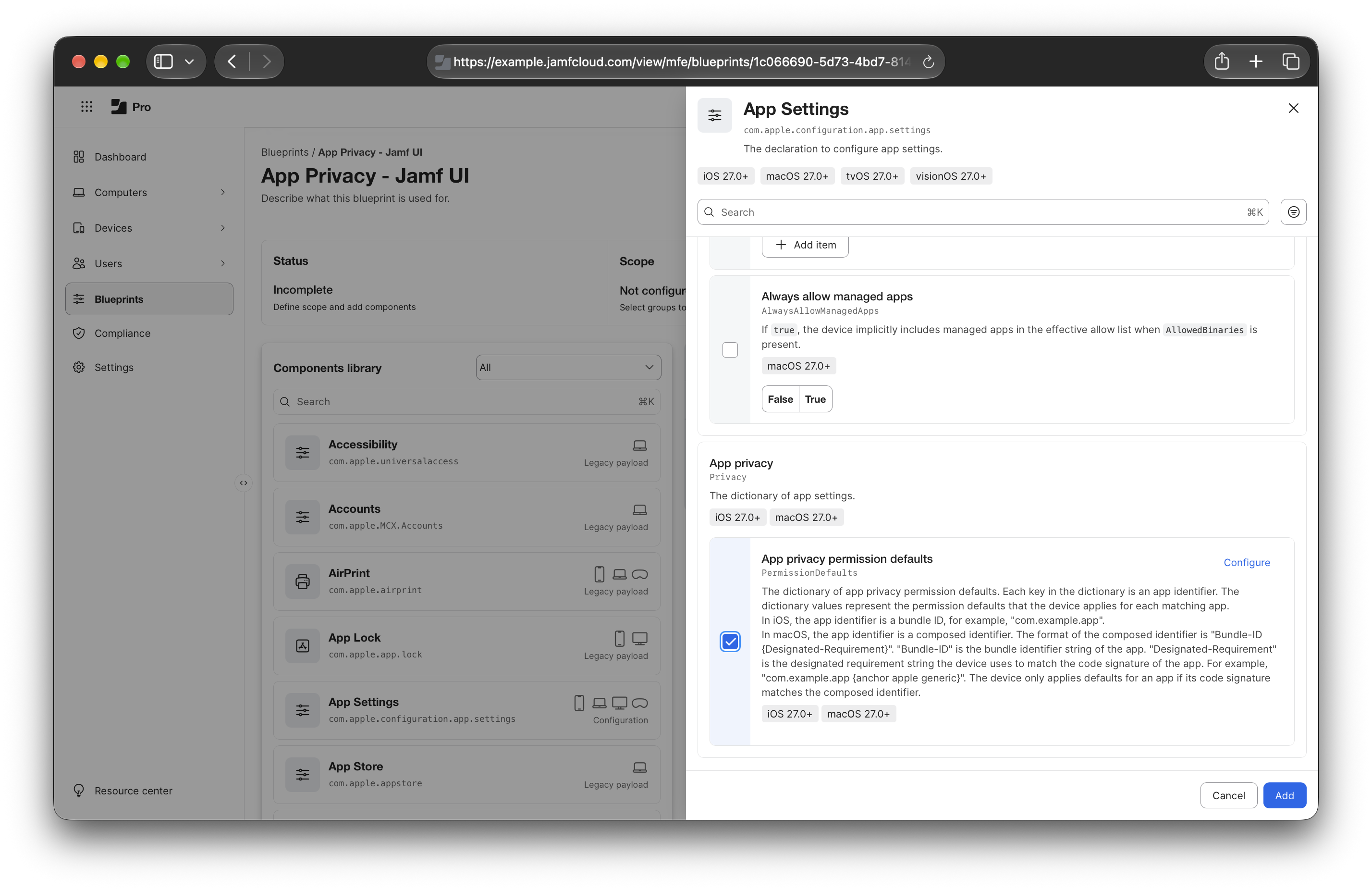
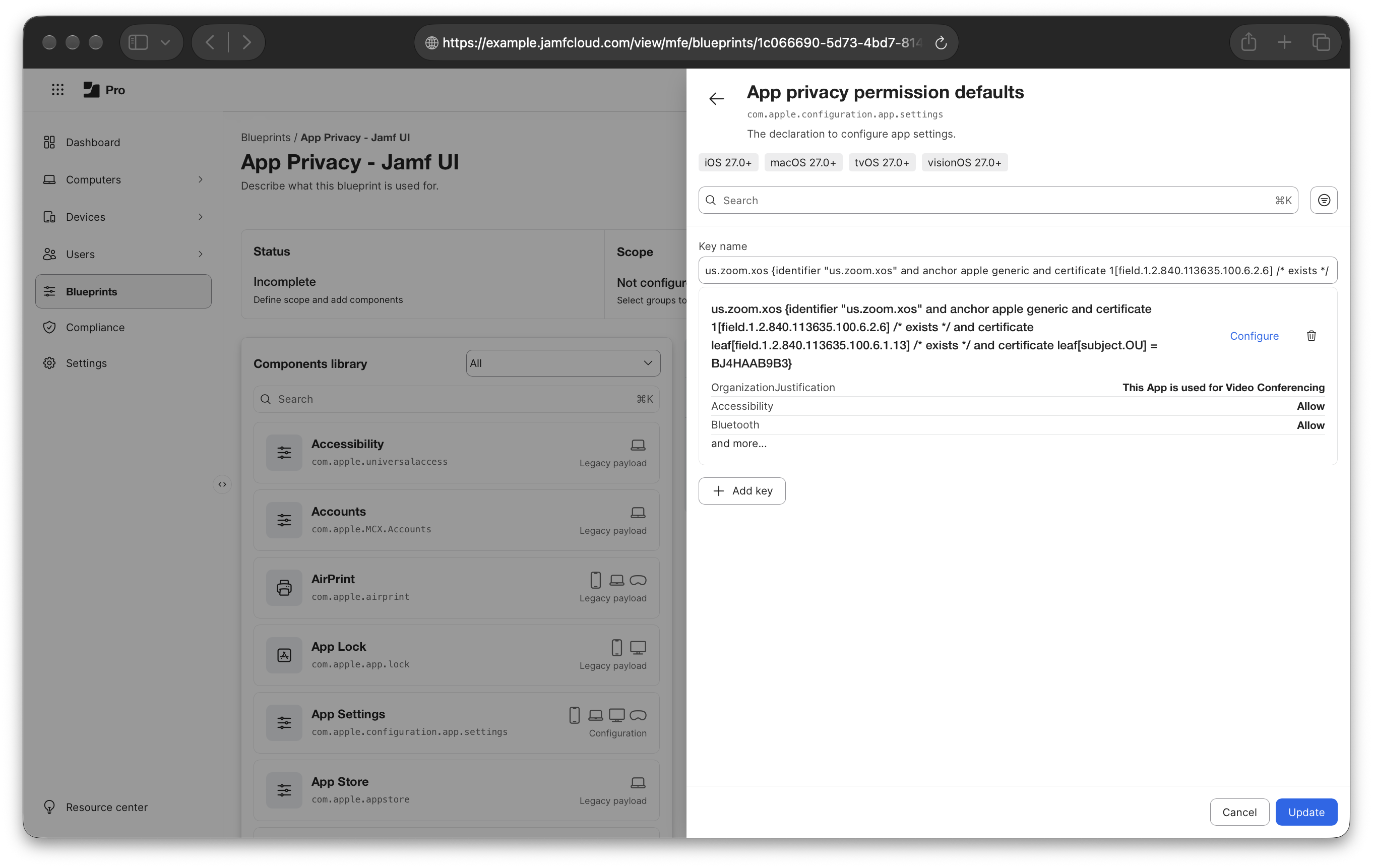
To get started, the key field in Blueprints is for the app’s identifier — which in macOS is the composed identifier combining the Bundle ID and the Designated Requirement.
Here’s how to put it together:
- Grab the Bundle ID and Designated Requirement using the two
codesigncommands shown above. - Combine them using the format listed by Apple for this control:
Bundle ID {Designated Requirement}.
Because Blueprints builds the underlying JSON structure for you, you can paste this raw output straight in without the headache of escaping characters or wrestling with extra double quotes.
Make sure to wrap the Designated Requirement in curly brackets
{}, not standard brackets(). Also check that you’re not wrapping the app identifier in double quotes"", otherwise the declaration configuration won’t be valid.
For Zoom, the key field is:
1
us.zoom.xos {identifier "us.zoom.xos" and anchor apple generic and certificate 1[field.1.2.840.113635.100.6.2.6] /* exists */ and certificate leaf[field.1.2.840.113635.100.6.1.13] /* exists */ and certificate leaf[subject.OU] = BJ4HAAB9B3}
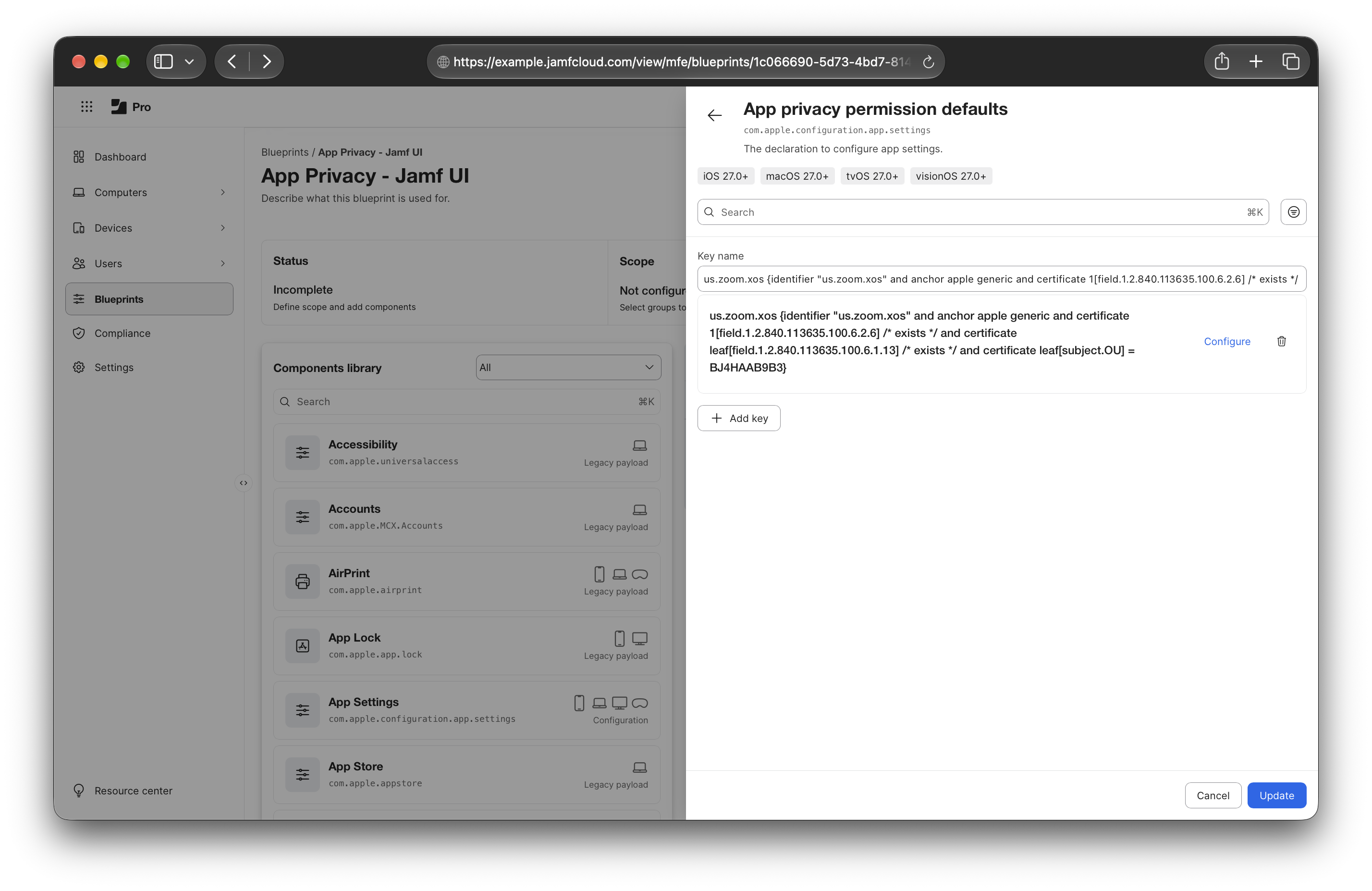
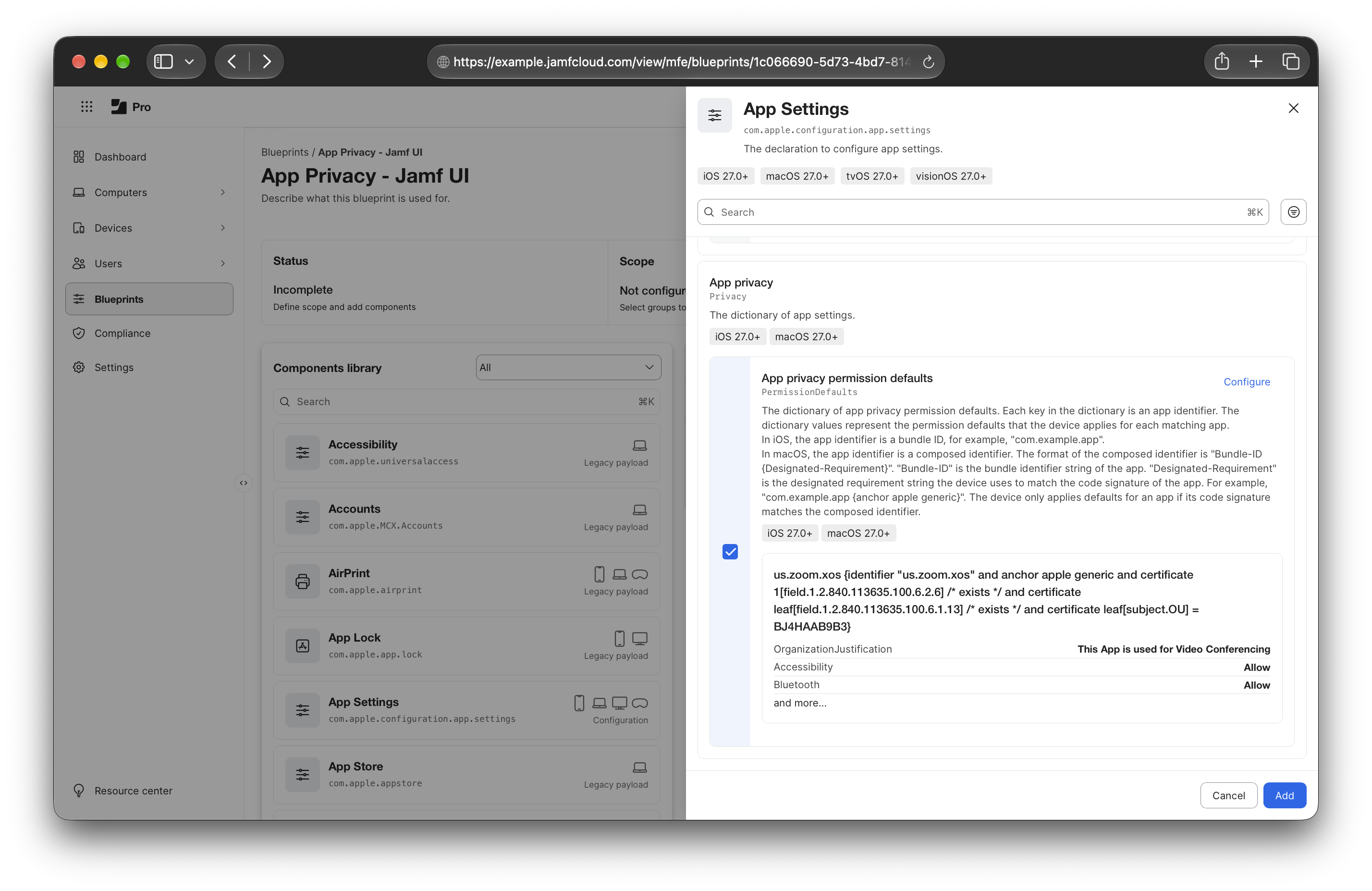
When selecting Configure, you’re presented with drop-down controls to select the default permissions for whichever services you want to include in the declaration:
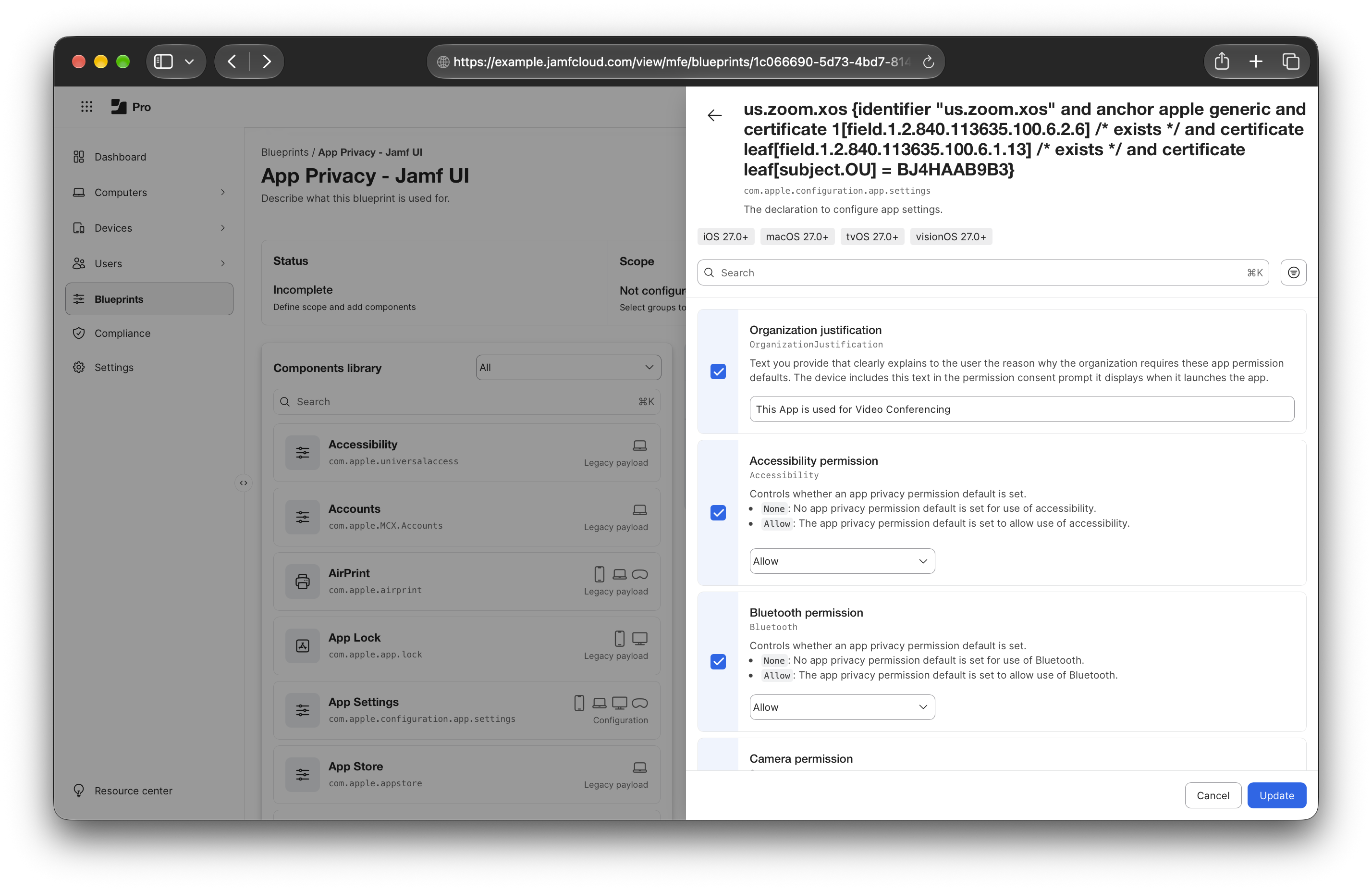
Once selected, saving the settings adds the configuration directly to your blueprint, ready to deploy across your devices.
That’s it!
That’s all there is for configuring the new App Privacy Declaration.
It might take a bit of time to get the configurations crafted, tested, and deployed to your fleet, but hopefully this short post gives you an example of what you can do with this new control if you haven’t been testing it during the Betas.
Important points about deprecations.
As a result of these controls now moving into the DDM spec, Apple have announced the deprecation of controls for Camera, Microphone, Accessibility, Speech Recognition, and BluetoothAlways using a PPPC/TCC configuration profile.
This doesn’t mean removed, but it’s a shot across the bow to move your controls to DDM (if you can), and that you may not get support if you encounter issues using a deprecated control.
Accessibilityalso has some other changes to how it works via PPPC/TCC on macOS 27.These are detailed below.
If you’ve got existing PPPC/TCC profiles for Accessibility, they will continue to enable this setting but users will see a new notification alerting them to this.
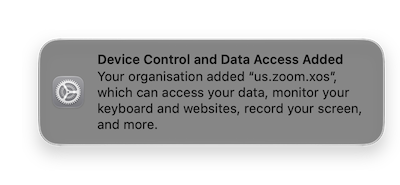
Not only will the user get this new notification, they’ll also be able to disable the control in System Settings, if they want to.
It is no longer greyed out.
“In macOS 27.0, the device shows a non-blocking notification for each application when this setting is applied, and it allows the user to make changes to the setting in the System Settings app.”
And this notification also seems to display for any app where you have a PPPC/TCC profile with Accessibility installed - even if the app itself isn’t on the device.
So if you pre-deploy PPPC/TCC profiles for apps that your users might install, this could be quite noisy.
Catch you next time!
That’s all I’ve got today, so all that remains is for me to wish you Happy Release Day and good fortune for the journey of AppleOS 27!