VPP via Setup Manager? Challenge accepted.
Since the release of Jamf Setup Manager, it's not been possible to install App Store Applications through VPP whilst running Setup Manager....until now!
Rewinding the clock
One of my first blog posts detailed the process I was using to work around the limitations of the jamf binary that Jamf Setup Manager works with, and how that prevented the ability to command VPP apps to install directly during Setup Manager.
If you haven’t read that, or want to refresh your memory, you can find it here:
At a high level, this process was:
- Jamf Setup Manager runs policies
- User signs in
- VPP applications are installed through macOS Onboarding
If it ain’t broke, don’t fix it!
Sure - this approach is still absolutely a valid and working method of onboarding your devices, ready for users with all required applications installed.
BUT.
Since the release of Jamf Setup Checklist, I’ve been trying to migrate as much of my macOS Onboarding configuration into Setup Checklist as I can, but I still wasn’t able to do away with macOS Onboarding entirely, simply due to the VPP App installation challenges.
This is an obstacle that’s been irritating me for a while, and whilst I was sat listening to the Jamf Nation Live London keynote, I had an epiphany!
- We can use Jamf Setup Manager to call policies…
- Policies can include a script…
- VPP Apps can be made as a Self Service install item…
- We can initiate the install programmatically using the URL Scheme for Self Service…
See where this is headed?
Admittedly, I had actually thought of, and tested this process in March 2025 and shared this on the Mac Admins Slack, but at the time the UX was ugly and I didn’t spend much time trying to improve it.
However, being a Mac Admin requires constant learning, and learnings from my more recent post where I use Jamf Setup Checklist to populate user details in Jamf Pro afforded me the ability to reattempt this.
I’m intrigued….go on…
App setup
I set about testing this using Slack as the VPP app I wanted to install during Setup Manager, but you should be able to use any app that you wish to, provided the configuration is the same.
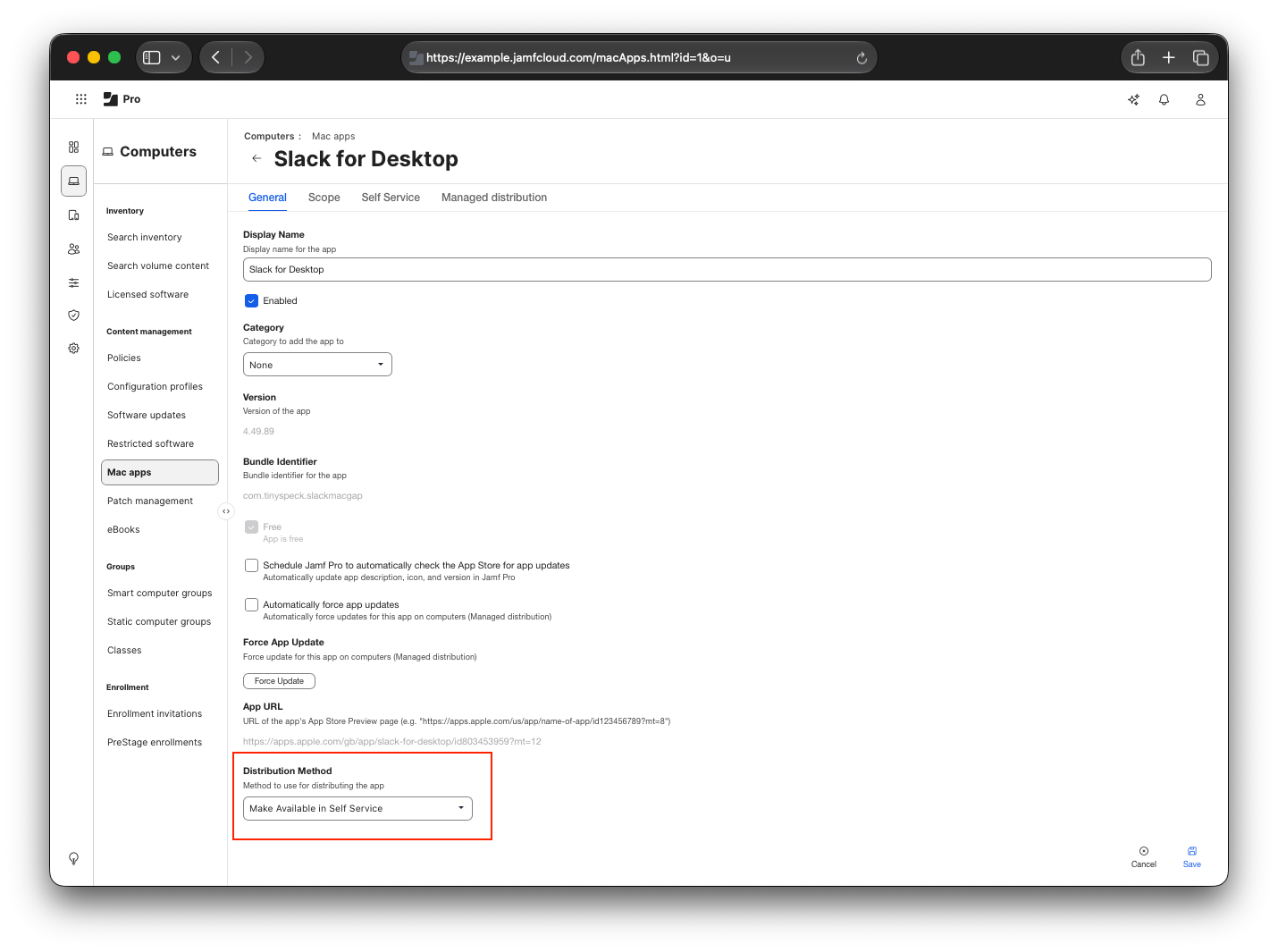
Firstly, we need to make sure that the VPP App is set to install through Self Service, and is scoped accordingly.
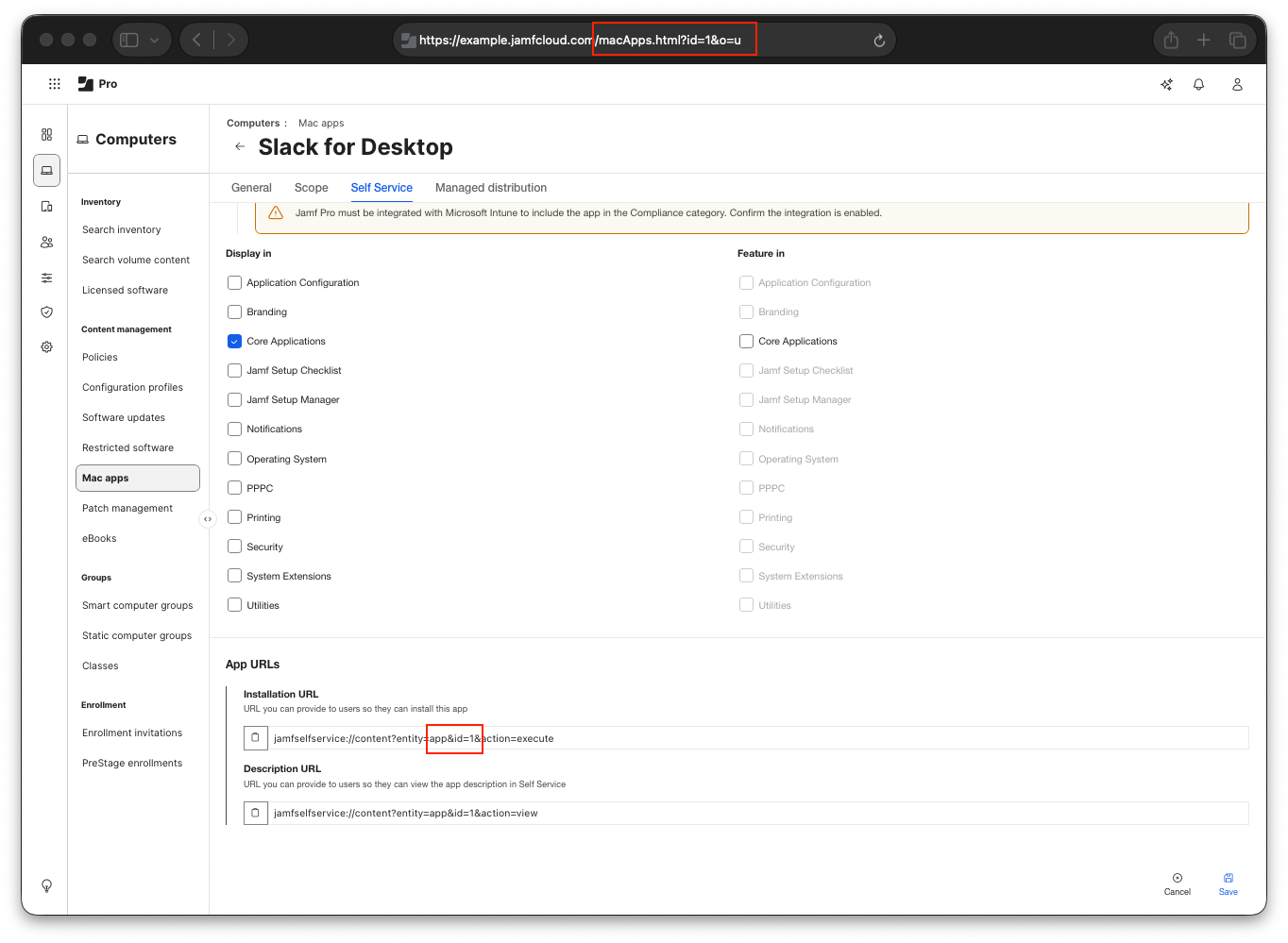
We also need to grab the App ID which is both in the Jamf Pro URL, and also listed in the App URLs section under the Self Service settings. In the example image below, the App ID is 1.
Handling the installation
As I touched on earlier, to actually do the installation during Setup Manager, we need to initiate this from a script contained in a policy.
The policy setup is simple:
- Scope it accordingly
- Give it a custom trigger to initiate it from Setup Manager
- Add the script as a policy payload
- Complete the required fields within the script parameters
The script is the heavy lifting bit here.
I’ll caveat that I’m definitely not a great scripting admin, but I’ve tried my best. If you can spot obvious improvements, please do let me know as I’d love to hear about them!
My idea was that the policy would initiate the install and then watch for completion of the installation before marking the policy as complete. To prevent an issue during this from keeping Setup Manager running on a specific step indefinitely, I’ve included a timeout which will mark the install as failed, and allow Setup Manager to progress.
The timeout threshold can be customised, but I’d recommend starting with a higher value and reducing it than the other way around.
In my testing, I started around 10 minutes (600 seconds) and reduced it to 5 minutes (300 seconds).
1
2
3
4
5
6
7
8
9
10
11
12
13
14
15
16
17
18
19
20
21
22
23
24
25
26
27
28
29
30
31
32
33
34
35
36
37
38
39
40
41
42
43
44
45
46
47
48
49
50
51
52
53
54
55
56
57
58
#!/bin/zsh

# This script is designed to allow for VPP apps to install during Jamf Setup Manager.
# This will be done by calling the url scheme to execute the install of the app, using the `open -j` argument to hide the SSP app GUI

#Variables that users can set
URL_SCHEME=$4
ID=$5
APP_PATH=$6
TIMEOUT_THRESHOLD=$7
SLEEP_VALUE=$8
SELF_SERVICE_NAME=$9


# Fixed variables
ELAPSED_TIME=0
URL=${URL_SCHEME}content?entity=app\&id=${ID}\&action=execute

# 1. Check for presence of the app.
# If it exists, exit the script with no action taken. Report success, as the app is present.
# If it doesn't exist, then call the Self Service URL to install silently

function quit_self_service(){
/bin/sleep 2
/usr/bin/osascript -e "tell application \"$1\" to quit"
}

if [[ -d "$APP_PATH" ]]; then
    echo "$APP_PATH exists."
    echo "Not calling to install. Exiting with success"
    exit 0
else
    echo "$APP_PATH does not exist."
    echo "Calling to install..."
    open -j "$URL"
fi

# Use an until loop to act as a watchpath
until [[ -d "$APP_PATH" ]];do
    if [[ ELAPSED_TIME -ge TIMEOUT_THRESHOLD ]]
        then
            echo "Timeout threshold reached."
            echo "Marking installation as failed."
            quit_self_service $SELF_SERVICE_NAME
            exit 1
        fi

    echo "$APP_PATH does not yet exist. Looping..."
    echo "Time elapsed: $ELAPSED_TIME"

    sleep $SLEEP_VALUE
    ((ELAPSED_TIME+=SLEEP_VALUE))
done

echo "$APP_PATH exists. Completing..."
quit_self_service $SELF_SERVICE_NAME

exit 0
I’ve also specified the Parameter labels as the following:
| Parameter | Label |
|---|---|
| Parameter 4 | URL_SCHEME |
| Parameter 5 | ID |
| Parameter 6 | APP_PATH |
| Parameter 7 | TIMEOUT_THRESHOLD |
| Parameter 8 | SLEEP_VALUE |
| Parameter 9 | SELF_SERVICE_NAME |
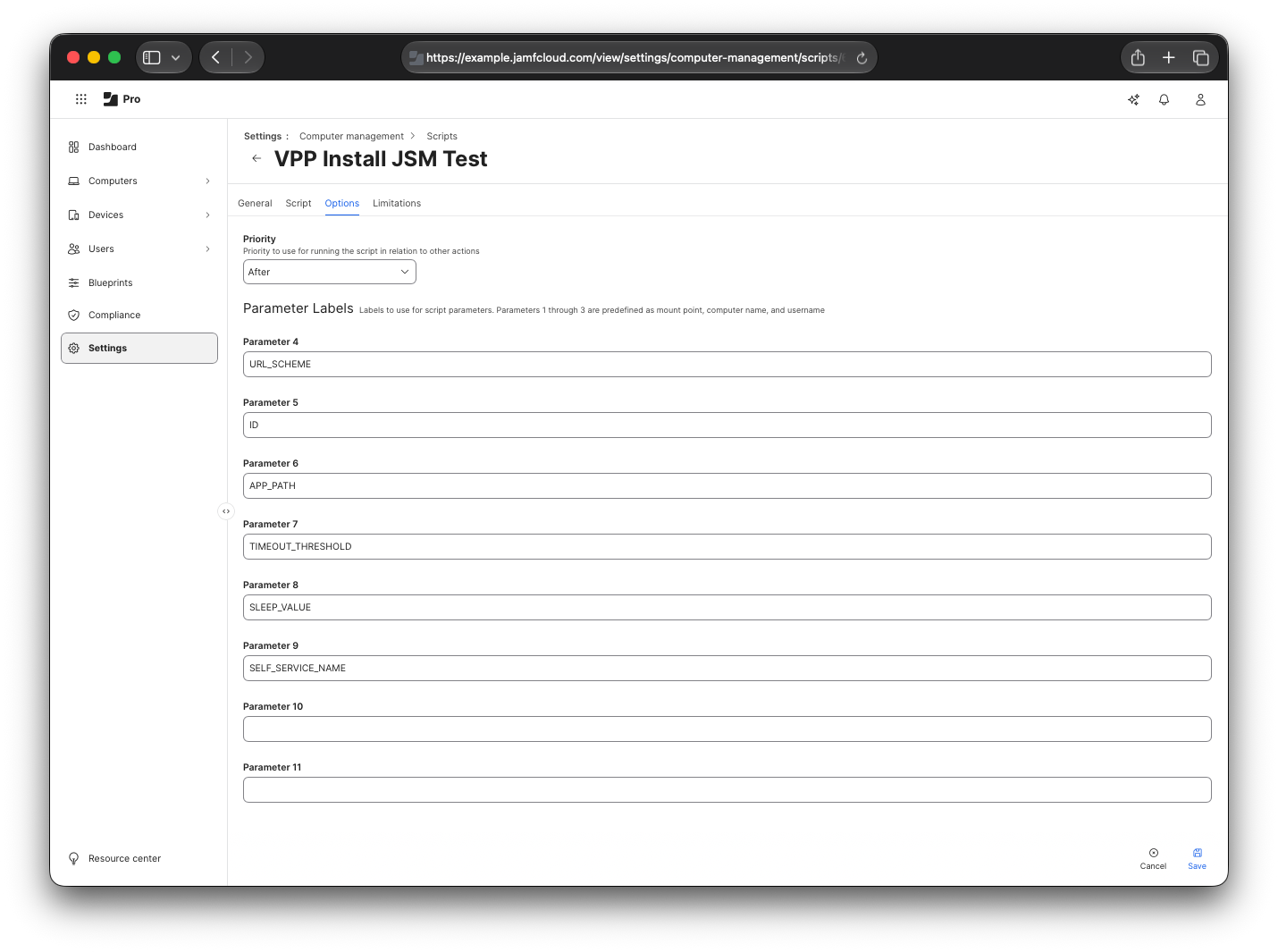
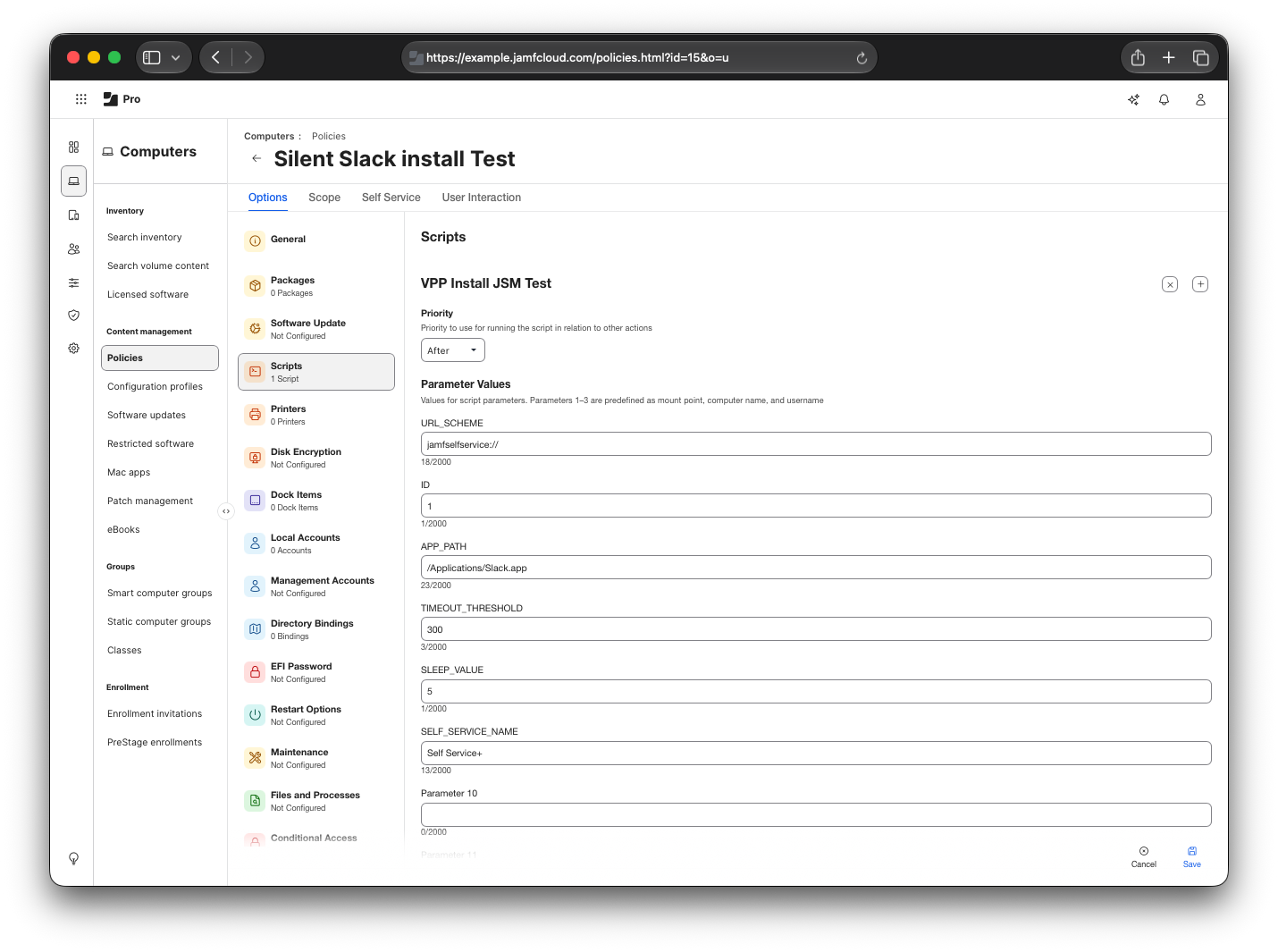
For Slack, I then populated the following information:
| Parameter | Label | Value |
|---|---|---|
| Parameter 4 | URL_SCHEME | jamfselfservice:// |
| Parameter 5 | ID | 1 |
| Parameter 6 | APP_PATH | /Applications/Slack.app |
| Parameter 7 | TIMEOUT_THRESHOLD | 300 |
| Parameter 8 | SLEEP_VALUE | 5 |
| Parameter 9 | SELF_SERVICE_NAME | Self Service+ |
What does it look like in action?
Below you can see a recording of Jamf Setup Manager executing a very slimline set of actions. This is merely for demonstrating purposes, and I’ve sped the recording up so it’s as quick to watch as possible.
At the end of the recording, I open Finder, and navigate to the /Applications directory to show that Slack.app is present on the device.
I also open the /Applications/Slack.app package contents to show the presence of the _MASReceipt directory, which is only present on installs of Apps from the Mac App Store.
Jamf Setup Manager installing Slack through VPP
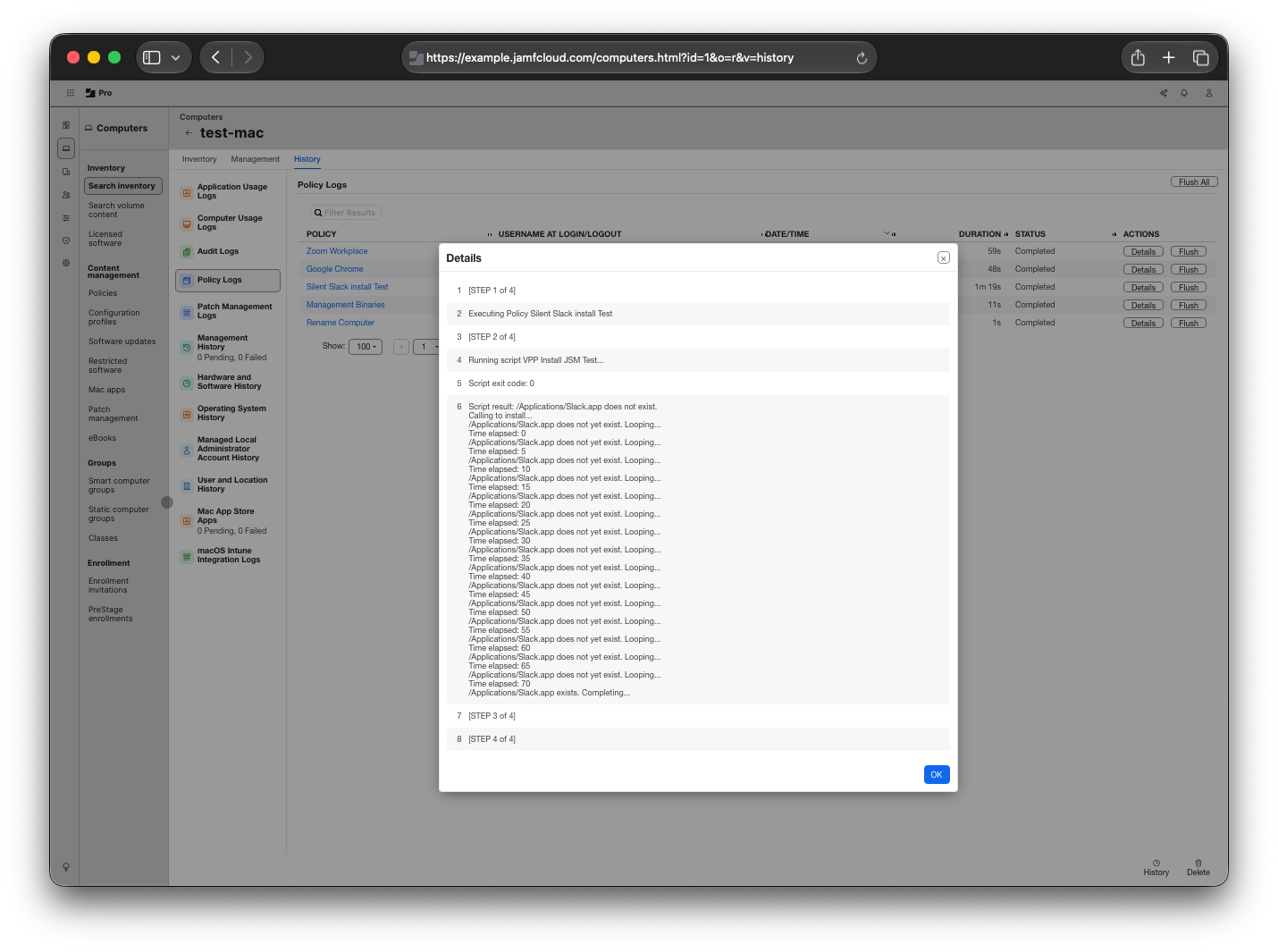
Once that completed, we can see the policy logs report the output of the installation script, increasing in time and reporting a success when the /Applications/Slack.app path exists on the device.
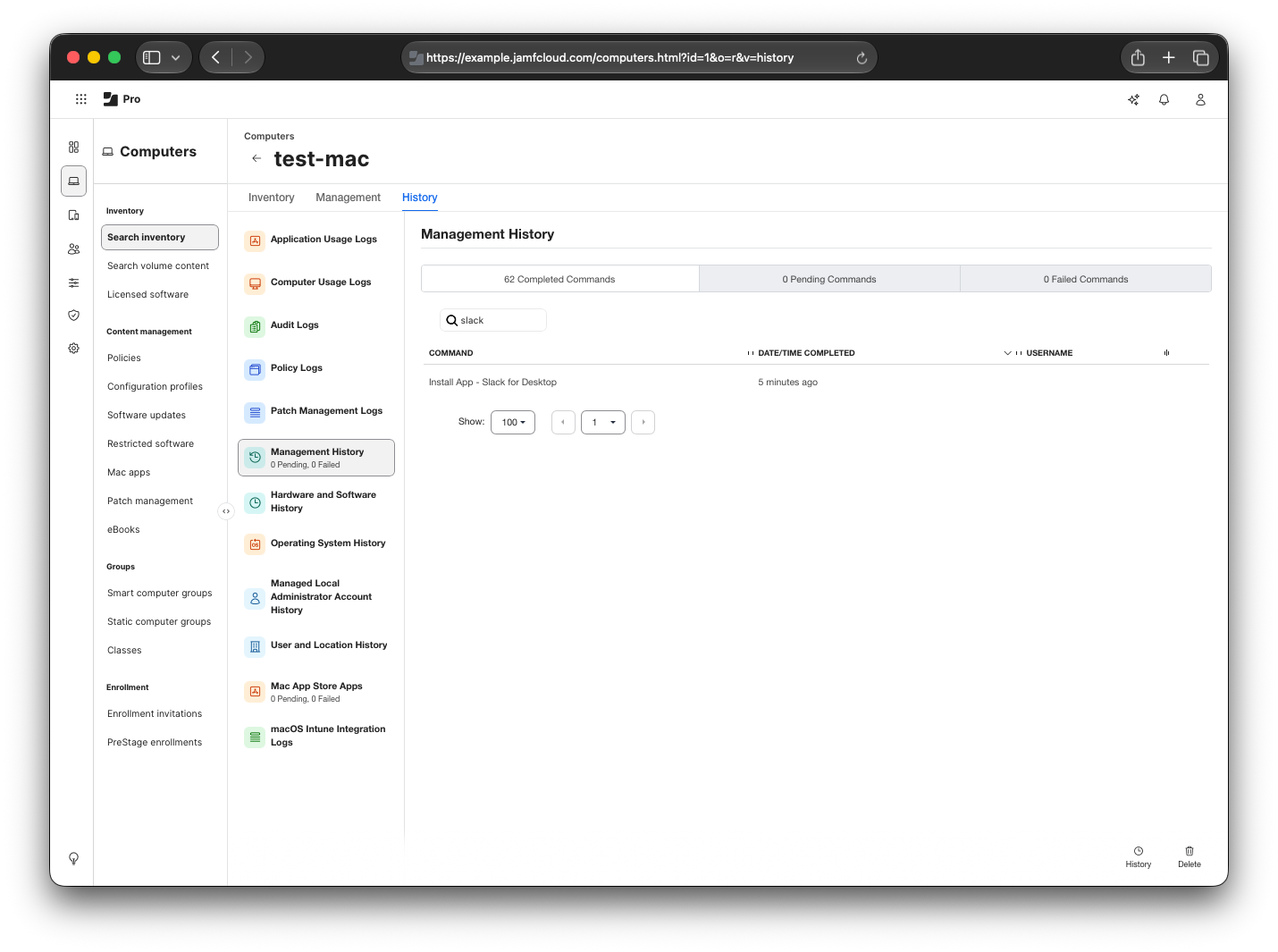
We can also see a Completed MDM command to Install App - Slack for Desktop in the Management history section of the computer record, further proving this has indeed been installed through VPP.
What’s different (Architectural context summary)
If we compare what’s happening here to what was happening in my previous post, there’s a pretty big shift in the process:
- Context Switching: Previously the workflow required handing off the VPP App install to
macOS Onboardingafter a user session was established as there is no way to directly use thejamfbinary to install VPP Apps. This new method hacks the Self Service URL scheme to trigger the installations in the background during the Setup Manager phase. - User Experience: By utilising the
open -jflag, the Self Service GUI does not appear when Setup Manager is running. This drastically cleans up the ugly UX that I experienced from my testing in 2025.
Et voilà!
This testing wasn’t without its challenges, and whilst this does work in this example, I’d recommend thorough testing if you want to use this in your environment.
Since I worked this process out, I’ve also had some subsequent thoughts on modernising this further which in early testing is proving successful.
That’ll be the focus of a future blog post, coming soon™️!