Capture the flag (files): Turning deployment chaos into organised victory
Creating structured workflow deployments is key to running deployments that need a specific order of operations. With a simple script, and Extension Attribute, you can utilise existing capability within Jamf Pro to order your deployment, and enhance reporting across your macOS fleet.
Long time, no post…
It’s been pretty quiet on here for the last few months. Entering beta season, working on a complex deployment, and also taking some time off to get married has meant I’ve been a bit occupied and not had time to write.
However, that complex deployment has helped me to learn something new, and I thought it’d be a great opportunity to write something again!
What have I learned that’s new?
In two words: Flag files.
Occasionally I’ll come across an application deployment which requires me to think more carefully about how to craft the order of operations to achieve success with the deployment whilst limiting impact to the end user.
Device Management Systems (DMS) often combine the use of the MDM/DDM channel provided by Apple with a separate, sometimes proprietary mechanism to deliver components outside of these channels. With Jamf Pro, configuration profiles or blueprints are delivered over the MDM/DDM channels, whereas policies and (some) inventory information is orchestrated by the jamf binary.
If you come across a deployment that needs to make use of both of these mechanisms, it can be challenging to combine them with a structured order.
This is where I’ve been experimenting with flag files.
What is a flag file?
A flag file is very much ‘does what it says on the tin’.
It’s a file that sits on a device for no purpose other than to cause something to happen, or to not cause something to happen!
Applications and Operating Systems will often use them as markers of a completed action, to prevent the process that completes that action from re-running.
@scriptingosx’s Setup Manager makes use of a flag file, as explained in the documentation.
In the case for Setup Manager, the flag file marks the completion of Setup Manager’s actions, and it’s presence prevents the application from relaunching.
How will it help me order my deployments?
Once a flag file is created, you can make use of an extension attribute (EA) to report the status of it across your macOS fleet, and build that EA into smart groups to use for scoping components.
This all makes sense, so how do I do it?
To set this up, you’ll need to do 3 things.
- Create a flag file
- This post focuses on creating it via a script to be used within deployments
- Create an EA to report on Flag File presence
- Create a smart group based on EA value
Flag file creation script
1
2
3
4
5
6
7
8
9
10
11
12
13
14
15
16
17
18
19
20
21
22
23
24
25
26
27
28
#!/bin/sh

FLAG_FILE_DIRECTORY="$4"
FLAG_FILE_NAME="$5"
FLAG_FILE_PATH="$4$5"

/bin/echo $FLAG_FILE_PATH


# Check if Flag file is present

if [ -e $FLAG_FILE_PATH ]; then

    /bin/echo "Flag File present, skipping creation"
    sleep 1
    exitCode=0

else

    /bin/echo "Flag file not present. Creating flag file"
    /usr/bin/touch $FLAG_FILE_PATH
    exitCode=0

fi

/usr/local/bin/jamf recon

exit $exitCode
The script above makes use of the variable paths within Jamf to provide a script that can be used in multiple deployments.
Of course the $4 and $5 variables can be modified to hard code your desired flag file location.
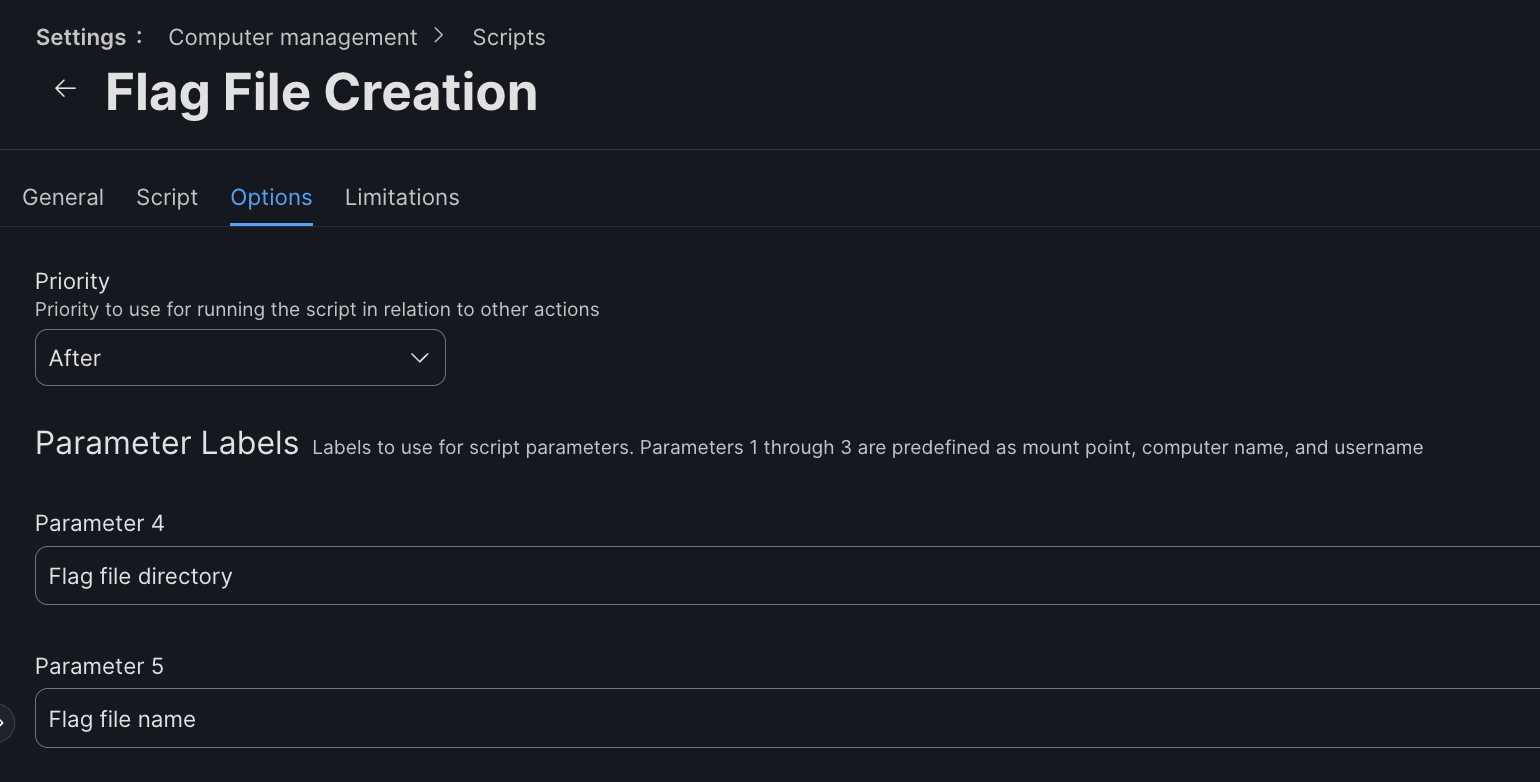
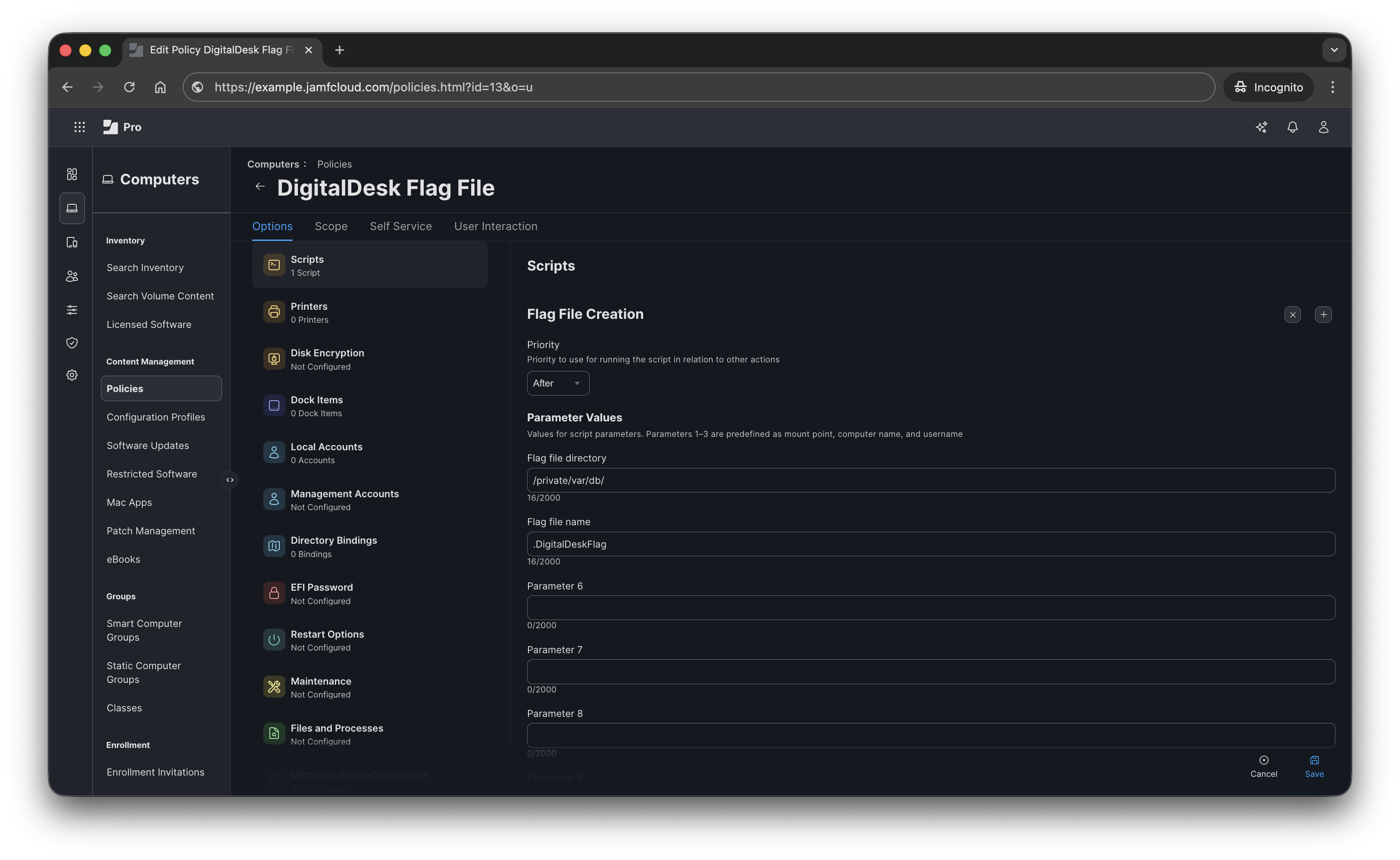
When you come to deploy this script in a policy you’ll need to specify the absolute path of the directory, and the file name.
Extension attribute
Below is a script that will identify if the flag file exists, and report Present if it finds it, or Absent if it’s missing.
1
2
3
4
5
6
7
8
9
10
#!/bin/sh

if [ -e "/private/var/db/.DigitalDeskFlag" ]; then
	result="Present"
else
	result="Absent"
fi


echo "<result>$result</result>"
It’s important to remember that the EA will require the absolute path of the flag file, else you will get incorrect results.
As EA values are only evaluated on inventory update, the flag file creation script above contains a jamf recon command to trigger value evaluation, at the time of the flag file being created.
Smart Group setup
Once we have a mechanism to create and report on a flag file, we need to create a smart group that we can use to scope components to, or exclude components from.
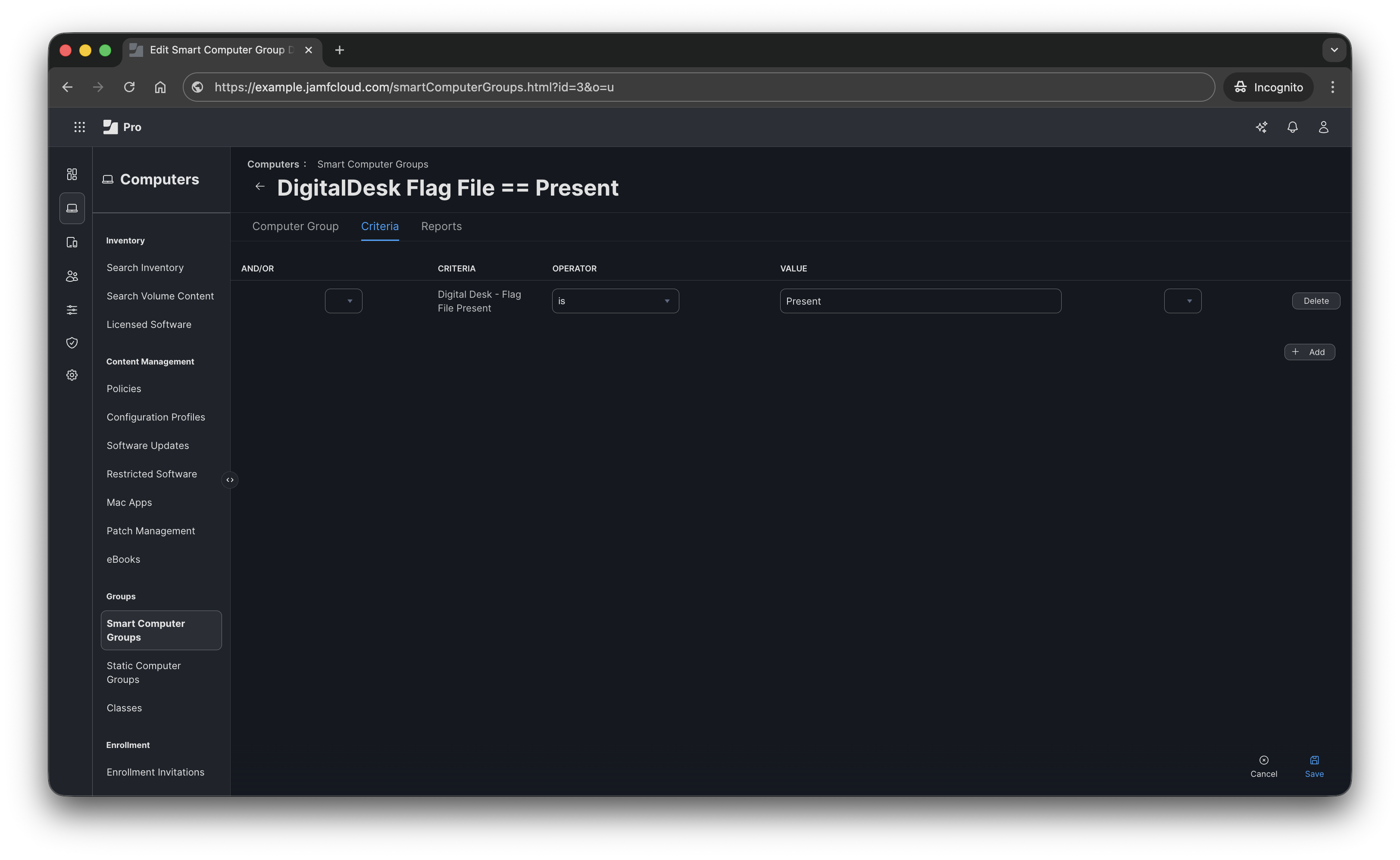
You could also create the inverse of this group, using the is not operator scope using that.
Important to remember that devices that either haven’t got the flag file, or devices that haven’t had an inventory update since the EA was put live would be in scope in that situation.
What does this look like client-side?
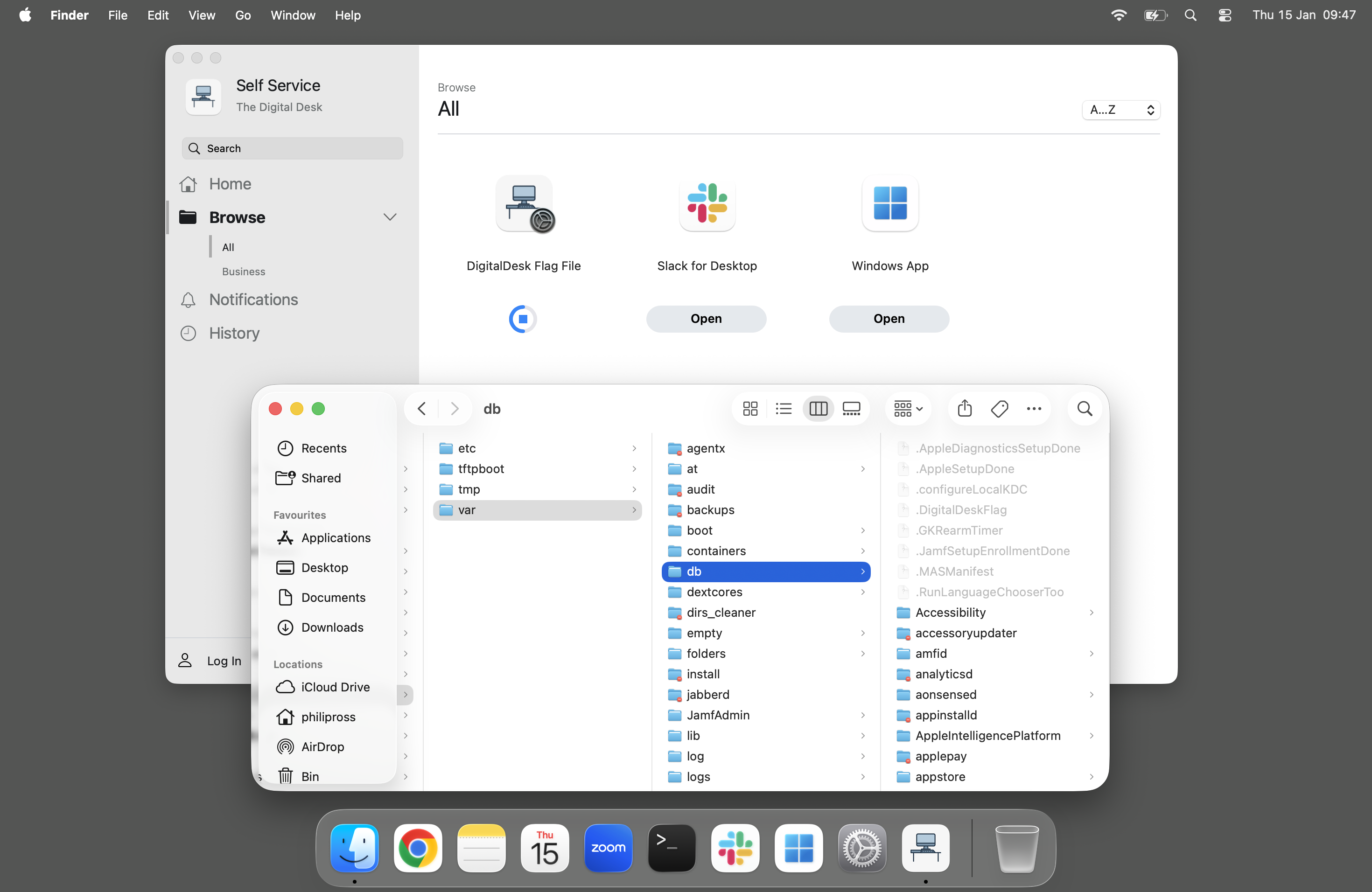
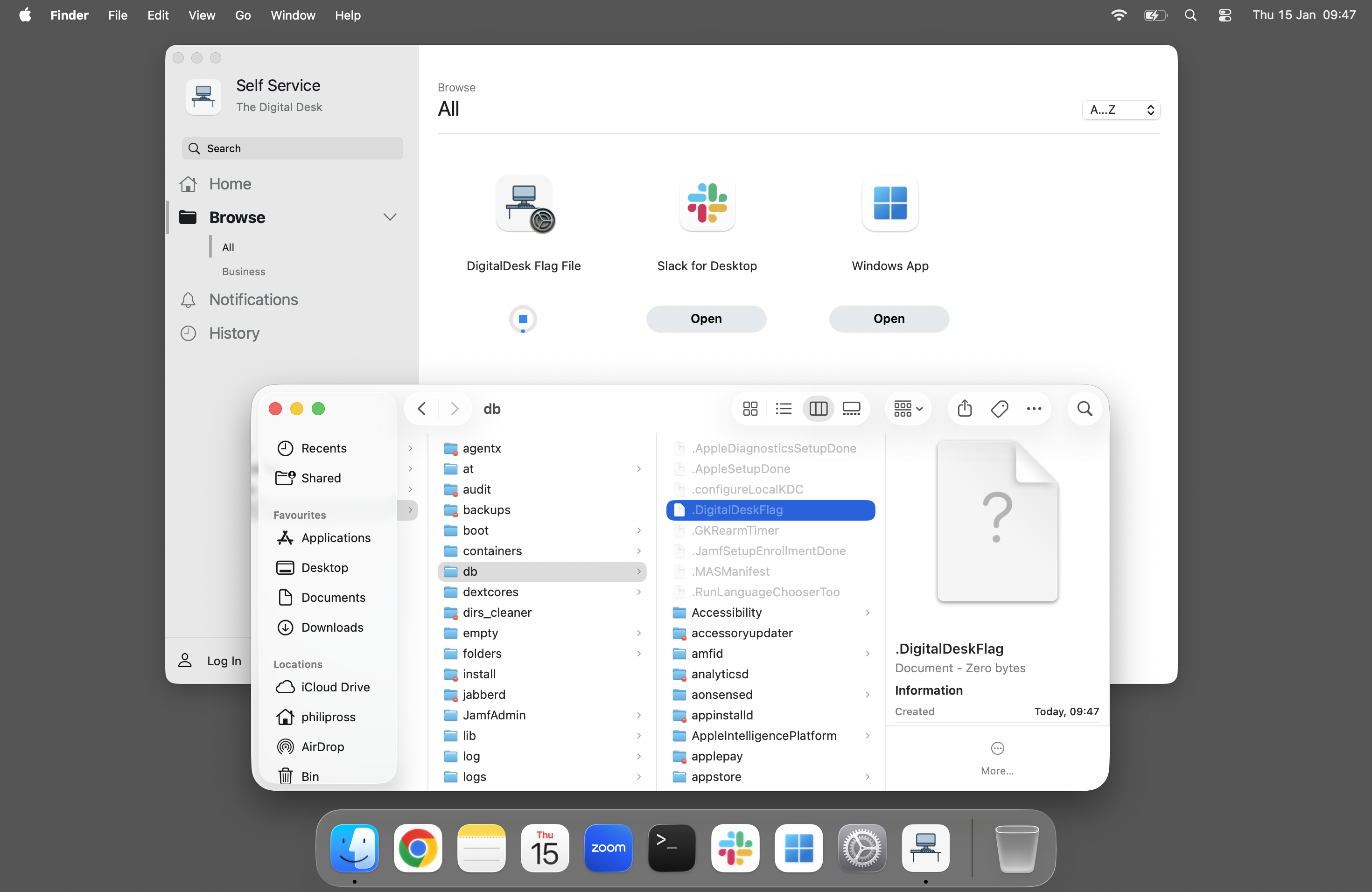
For demonstration purposes, I created a Self Service policy to run the flag file creation script, but you can use whatever triggers are suitable for your needs.
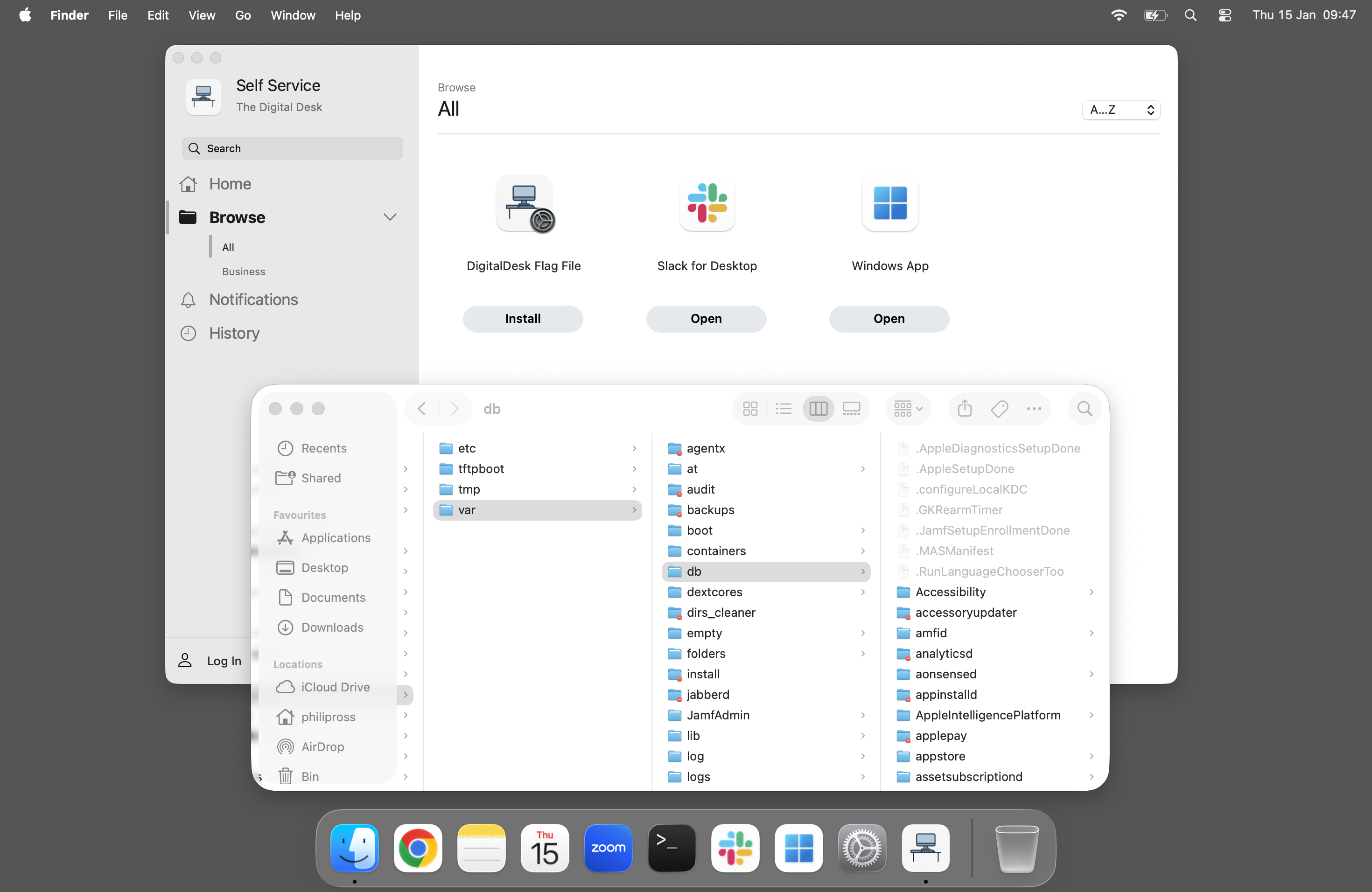
When the policy is run, you can see the Flag File populates within the /private/var/db/ directory as configured.
Et Voila!
That’s pretty much all there is too it.
Now you can scope your policies, profiles, or apps to devices that are members of the Smart Group, and they’ll fall into scope after the flag file creation script is run on their device, and inventory is updated.
This provides a waterfall method for structuring deployments across both DMS delivery mechanisms, allowing admins to create their own short workflows.