Declare and Secure: Enforcing macOS Background Security Update installation using DDM
DDM Software Update plans have the capability to enforce installation of Background Security Improvements. This post will cover off the ways that this can be achieved within Jamf, working with Blueprints but also without.
Background Security Improvewhaaa?
Background Security Improvements - or BSIs - is a capability introduced into the Apple iOS, iPadOS, and macOS platforms with the 26.1 release.
Prior to this release, Apple used Rapid Security Releases - RSRs - to achieve a similar goal.
This week, Apple released BSIs for the iOS, iPadOS, and macOS platforms, and it left a bit of a question on how to ensure devices across enterprise fleets installed this BSI as soon as possible.
Thankfully, the existing Declarative Device Management (DDM) Software Update (SU) mechanism that exists within the platforms can handle BSI enforcement, in the same way it can handle major, minor, or maintenance OS releases.
After some trial and error, I’ve worked out how to enforce this for macOS using Jamf - in two methods.
- A method using Blueprints
- A method without Blueprints
What do the docs say?
Before I delve into how to do this, I wanted to touch on what Apple’s documentation says around DDM SU, and what components are required to be successful here.
Apple’s GitHub page on this topic has details around what’s needed, and what the expected behaviour is.
For a SU declaration to be valid, it must contain two required keys:
1
2
3
4
{
    "TargetOSVersion": "xx.y.z",
    "TargetLocalDateTime": "yyyy-mm-ddThh:mm:ss"
}
Apple also state:
1
2
3
4
5
6
7
8
9
10
11
12
13
If the `TargetOSVersion` is an OS version that includes both a minor and patch version,
the system installs that specific version, for example, `16.1.1`. If the minor version
doesn't include a patch version, the system installs the latest available patch version.
For example, if the `TargetOSVersion` is `16.1` and a `.1` patch is available, the
system installs `16.1.1`.

The system can only install a supplemental software update on a device that already has the
base OS version installed. For example, the system can only install a `16.1`(a) update on a
device that currently has `16.1` installed, but it can't install that update on a device
that has only `16.0` installed. To update to a supplemental version from an older base
version, use two configurations. Use the first configuration to update to the new base
version, and the second configuration to update the new base version to its supplemental
version.
I’ve interpreted this in a way that means if you push 26.3.1 to a macOS device that is already on macOS 26.3.1, after the BSI has been released, it should identify there’s a BSI version available, and enforce that.
However, I haven’t had success with this in testing.
This could be a bug, or it could be that I’ve misinterpreted the docs.
I’ve also not had success specifying the TargetOSVersion as 26.3.1(a), or 26.3.1 (a).
Inspection of the unified logs shows an error with the target OS version format:
1
2
3
4
Failed to apply new configurations...VersionString:26.3.1(a)|BuildVersionString:
25D770870b|DetailsURL:(null)|companyName:(null)|NotificationsEnabled:YES), error: Error
Domain=SUCoreError Code=9100 "[kSUCoreErrorDDMInvalidDeclarationFailure] Invalid
declaration: target OS version (26.3.1(a)) has an invalid format"...
The same error appears using 26.3.1 (a)
Huge shoutout to Ade for the predicate that helped me find this:
1
log show --predicate 'composedMessage contains "26.3.1(a)"' --info --debug --last 5m
These errors could be because there’s no entry in the GDMF feed where the ProductVersion matches those formats.
The BSI does exist, but the ProductVersion is listed as 26.3.1 (or 26.3.2 for the Neo):
1
2
3
4
5
6
7
8
9
10
11
12
"macOS": [
  {
    "ProductVersion": "26.3.1",
    "Build": "25D771280a",
    "ProductVersionExtra": "(a)",
    "PrerequisiteBuild": "25D2128",
    "PostingDate": "2026-03-17",
    "ExpirationDate": "2026-06-18",
    "SupportedDevices": [
        "..."
    ]
  }
This means that you can’t use the built-in Blueprints option to enforce BSI installation, but that doesn’t mean that it’s not possible…
How do I do this using Blueprints?
Blueprints is Jamf’s approach to managing Apple devices using DDM.
If you’re unfamiliar, you can read more about Blueprints on Jamf’s Blog.
Given the errors above, we’re going to need to push a custom declaration to the device for the declaration to apply successfully, and point the device to the BSI update details.
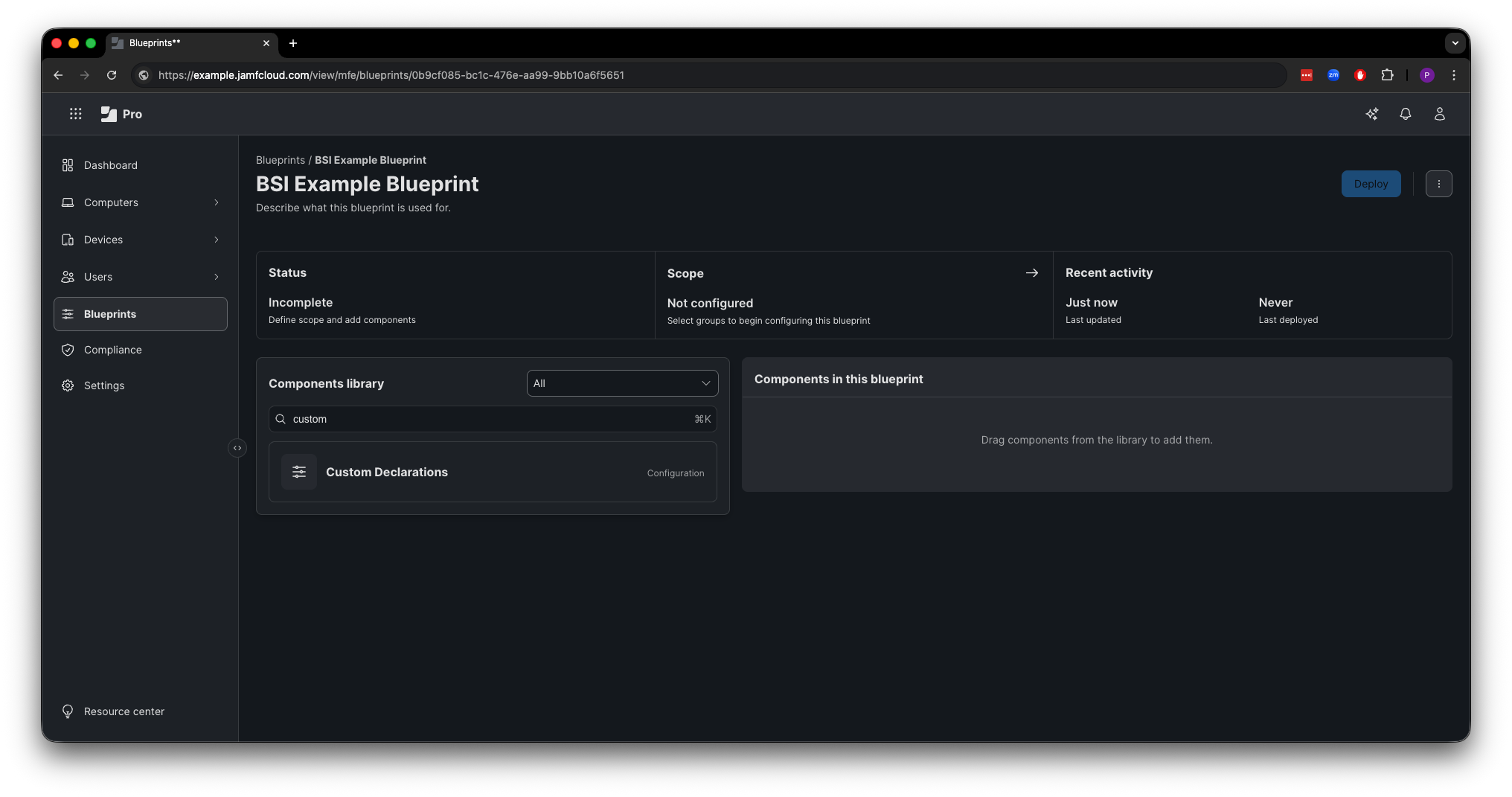
To do this, create a new Blueprint (or amend a suitable existing one!) and search for “Custom Declarations” in the Components Library.
Create the Custom Declaration, using the relevant declaration type, and payload. 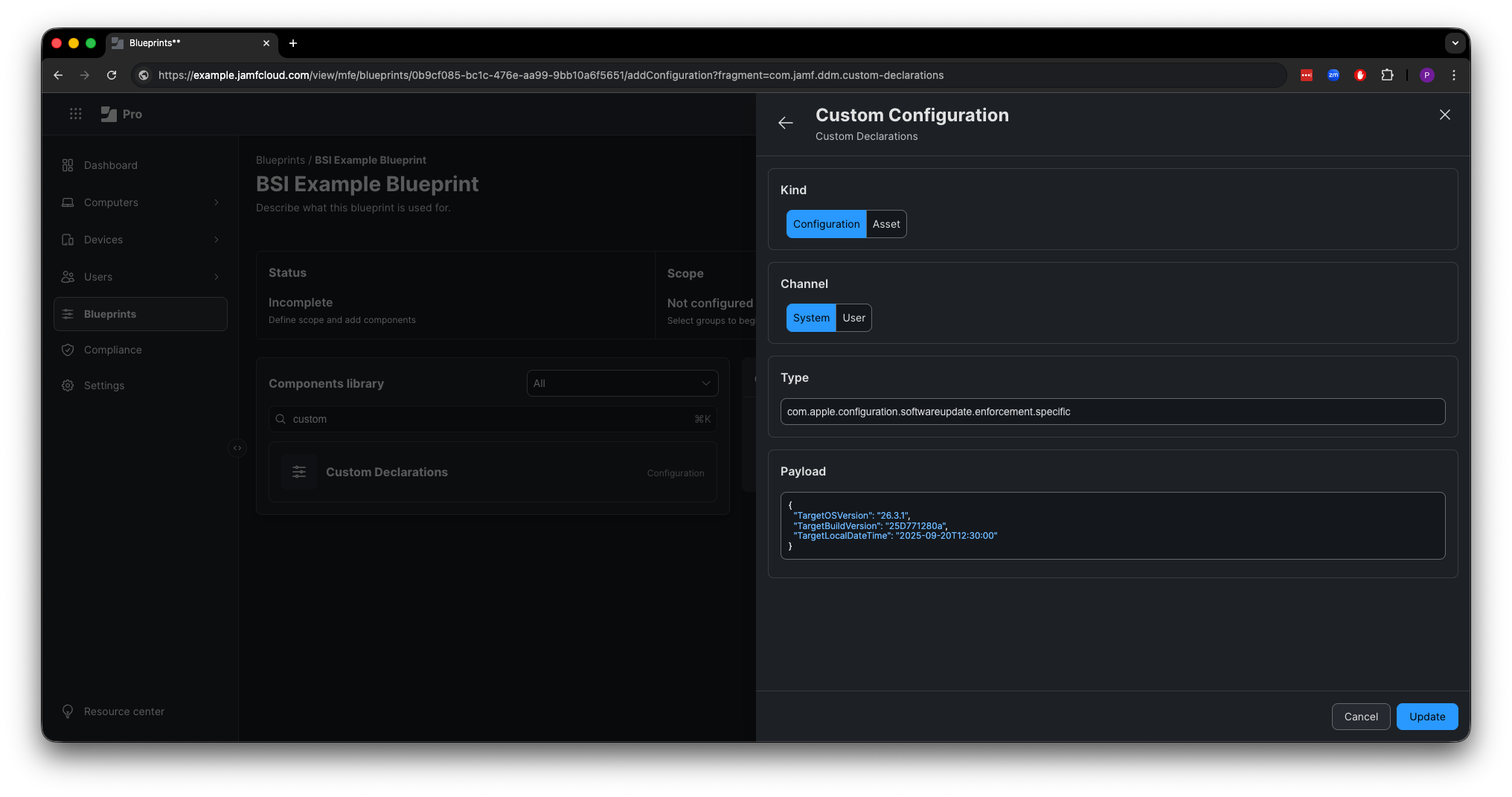
The image above, I’ve been pushing the 26.3.1(a) BSI, for macOS devices that aren’t the Neo.
Declaration type:
1
com.apple.configuration.softwareupdate.enforcement.specific
Payload:
1
2
3
4
5
{
  "TargetOSVersion": "26.3.1",
  "TargetBuildVersion": "25D771280a",
  "TargetLocalDateTime": "2025-09-20T12:30:00"
}
Once that’s entered, update the details, and add them to the Blueprint 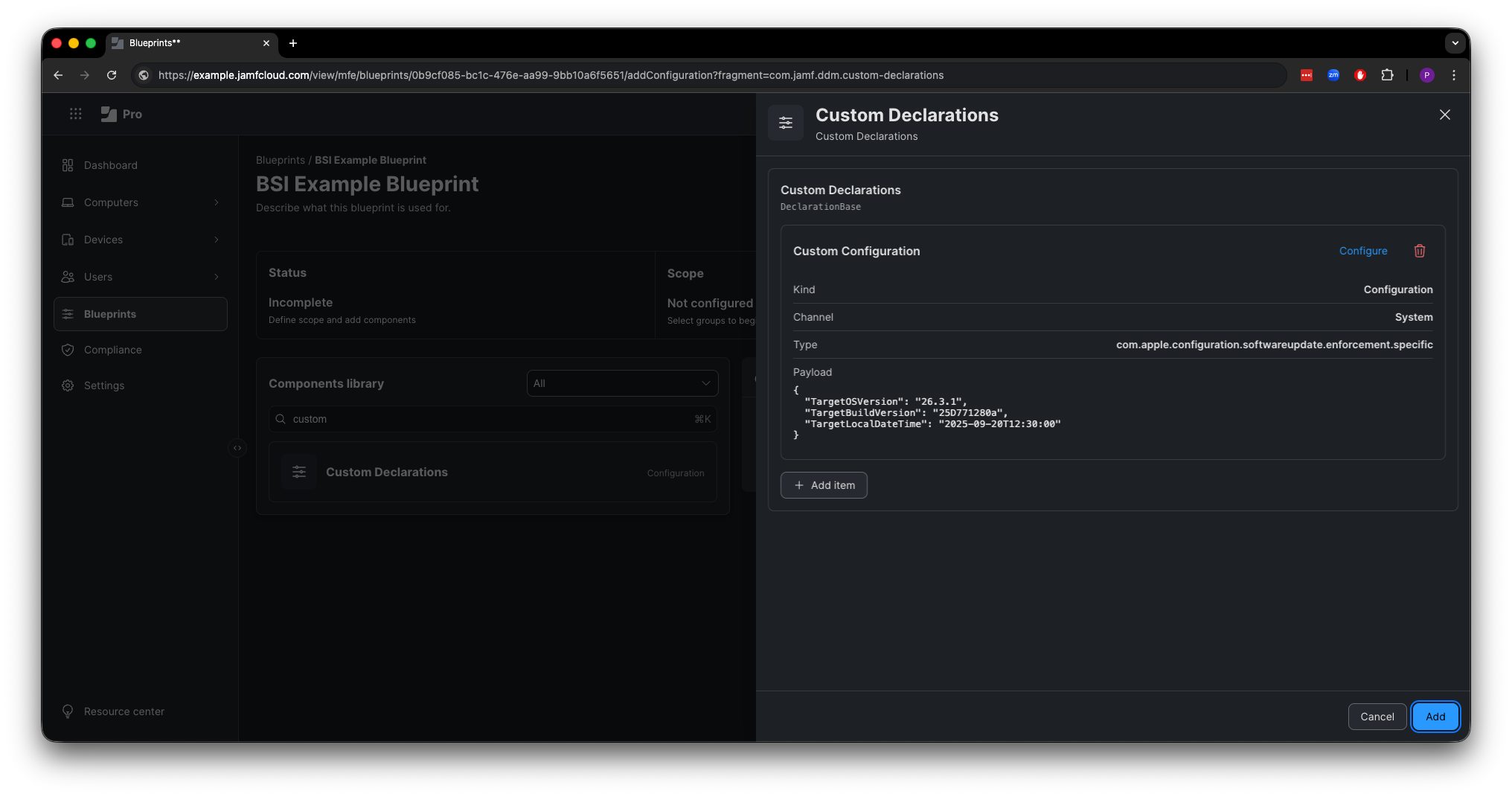
Then you’re ready to configure the rest of your Blueprint, add the scope, and deploy. 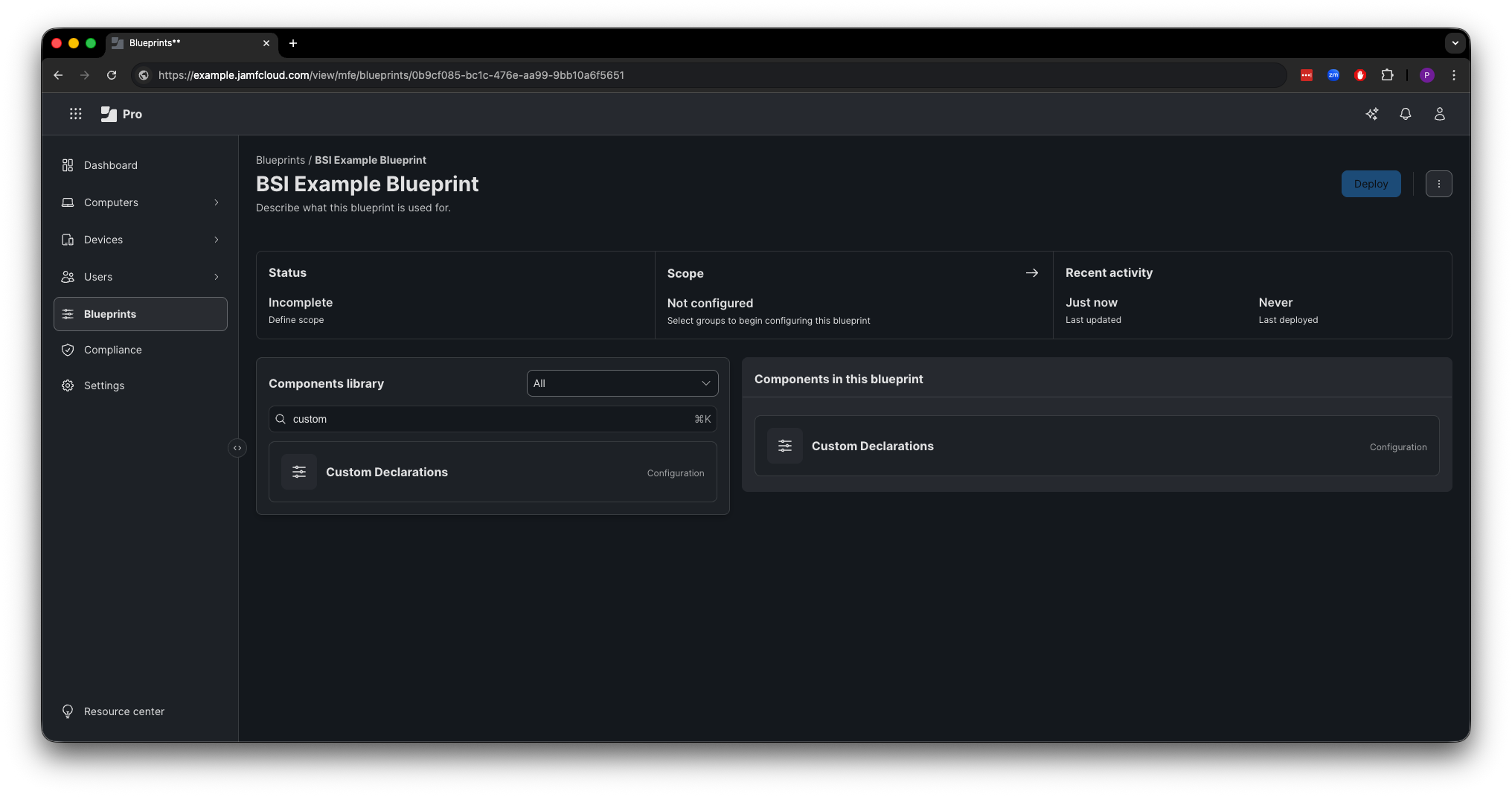
How can this be done without Blueprints?
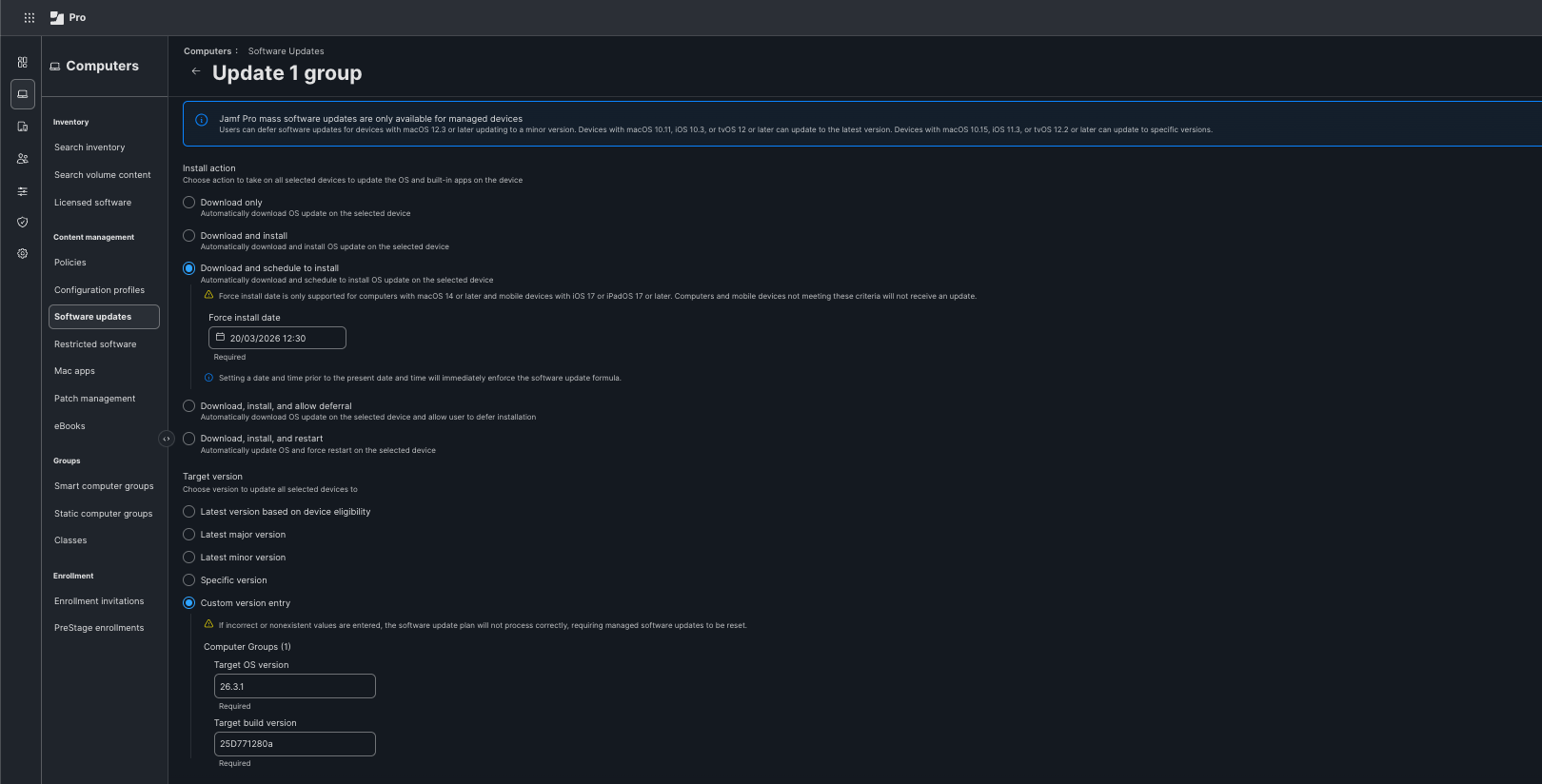
To achieve this without Blueprints, it’s slightly trickier as Jamf Support need to enable the Custom version entry options within the Software updates section of Jamf Pro.
Without that, Jamf will push the standard 26.3.1 OS version, and the plan will fail with error: DowngradeNotSupported
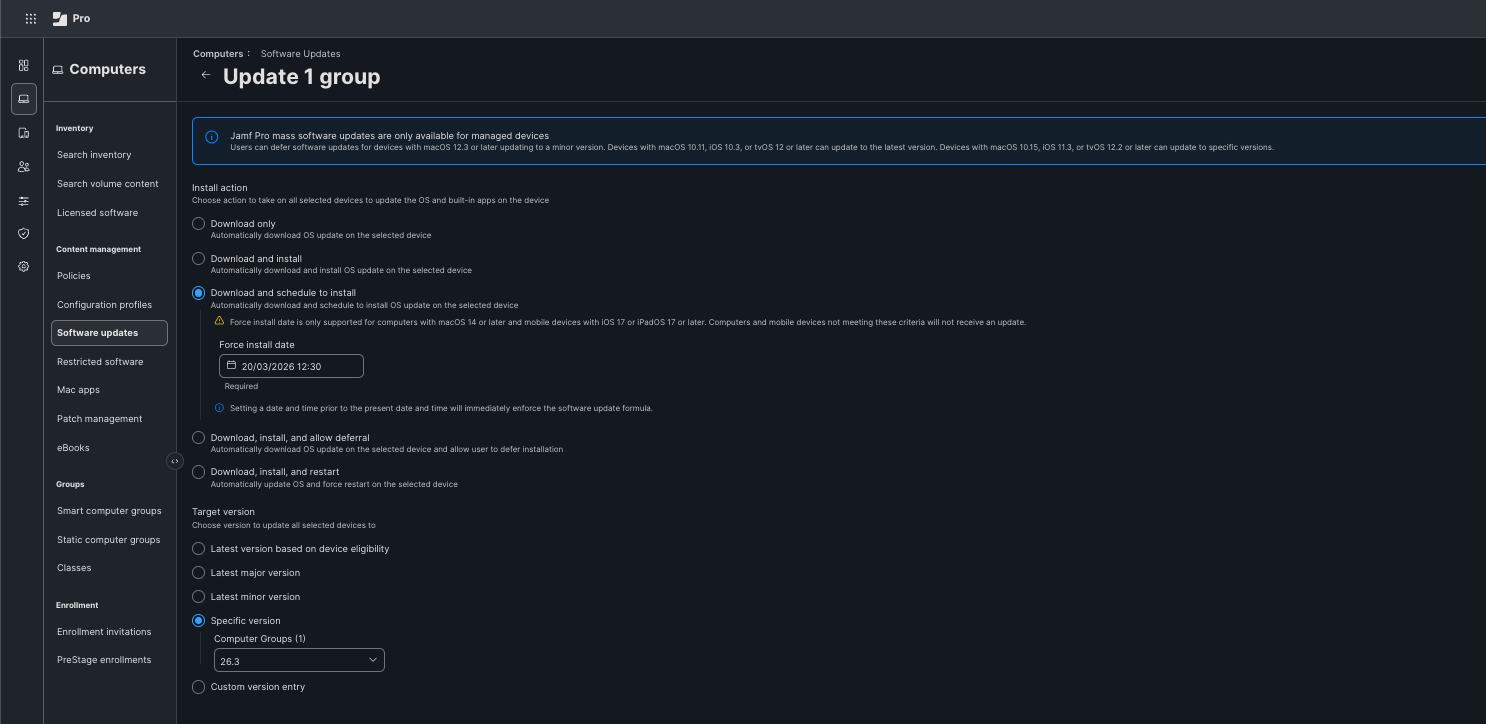
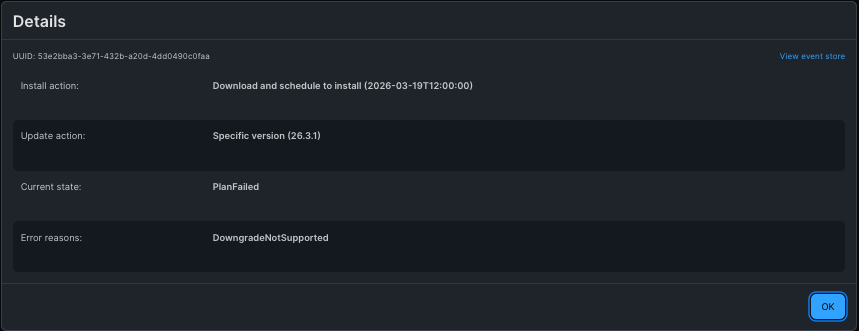
This failure reason is found on the Computer record, under the Operating System History details.
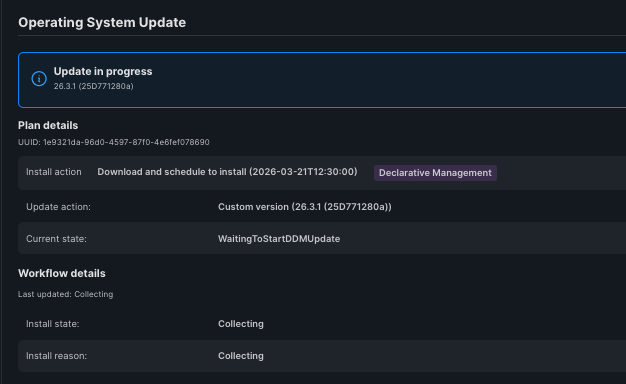
Once you have the Custom version entry option enabled on your Jamf Pro tenant, you can then populate a plan with the relevant details, and see the plan progress successfully;
What do users see?
As this is essentially pushing a DDM SU plan, users will see a Managed Update notification advising them an update has been scheduled: 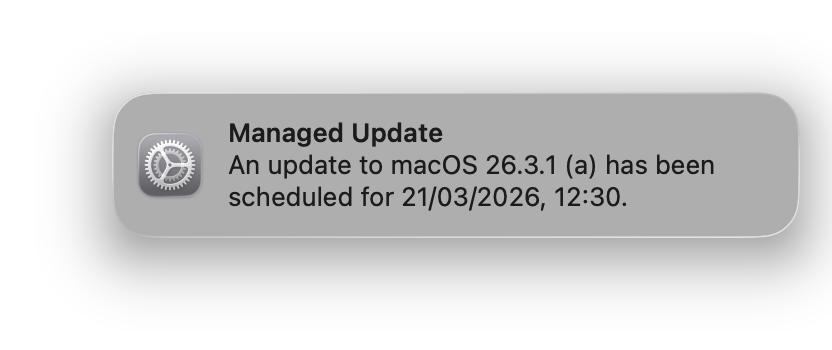
In System Settings, BSIs do not show up under General > Software Update.
They instead live under Privacy & Security > Background Security Improvements: 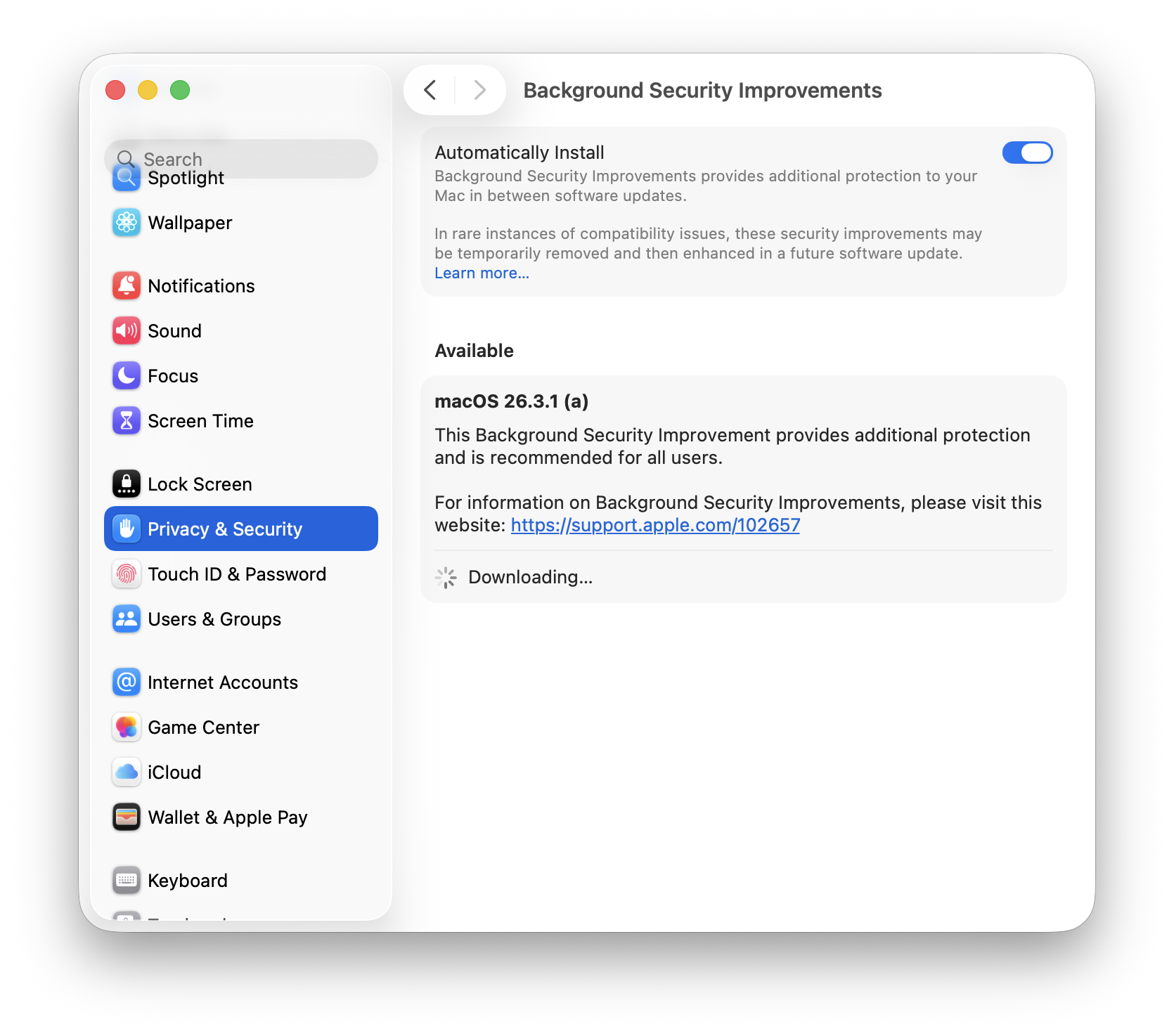
Credits
This post was born out of a couple of threads on the MacAdmins Slack.
All the testing in this post is my own, but it was definitely helped by a few people, and I wanted to thank them for that - even if they didn’t realise they helped:
Special mention has to go to Ade, who’s technical curiosity matches my own and helped to have an in depth, provocative conversation that led to this post.
Final thoughts…
Ultimately, Blueprints is the future for declarative management from Jamf Pro and so the non-Blueprints DDM SU process may eventually be removed.
This guide is designed to give an option to admins who may not be able to move to Blueprints yet, either due to the OIDC-Based Single Sign-On with Jamf Account requirement, or for other reasons.
Me personally, I can’t yet enable that as it breaks other things, but those are internal challenges that I’m working through.
It’s great to be able to maintain security when BSIs come along, without needing Blueprints to be available.
Anyway, that’s it for a Birthday Blog-post, I do hope it was helpful…I’m off for some cake.
See, ya!